Deployed iOS application
RoomGuard Help and Support
Usage guide for RoomGuard: Spy Cam Scanner on iPhone. Last updated: October 28, 2026.
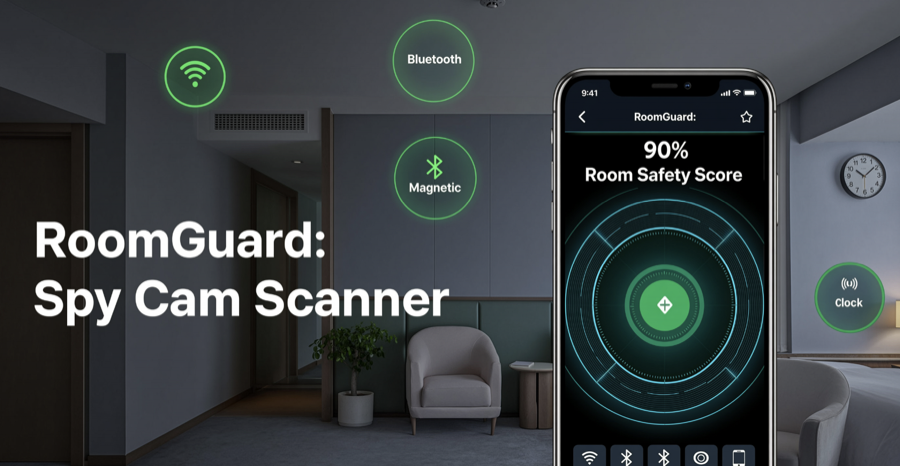
RoomGuard helps you inspect hotel rooms, rentals, offices, and home spaces for suspicious devices using iPhone-supported tools: local network checks, Bluetooth scanning, magnetic field readings, infrared inspection, lens-glint checks, and a guided checklist.
RoomGuard provides inspection guidance only. It cannot guarantee detection of every hidden camera, microphone, tracker, or electronic device.
Room privacy inspection utility
Check a room step by step with local iPhone sensors and clear guidance.
RoomGuard combines multiple weak signals into practical next steps. Results are best used with a careful visual inspection and common-sense safety decisions.
Quick Start
- Use RoomGuard on a physical iPhone. The iOS Simulator cannot validate camera, Bluetooth, magnetic, motion, or local network behavior.
- Open the app and choose the scan tool that matches what you want to inspect.
- Allow requested permissions only when you want to use the related tool.
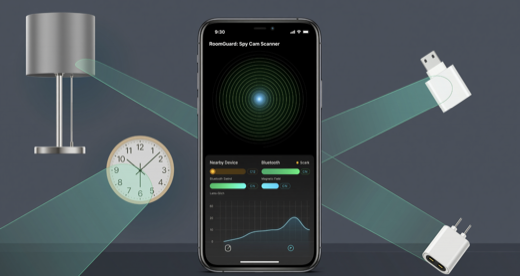
- Move slowly through the room and inspect likely hiding spots such as smoke detectors, clocks, lamps, vents, mirrors, outlets, and USB chargers.
- Use each result as a clue, not proof. Confirm suspicious findings visually or with the property owner, hotel desk, platform support, or local authorities when appropriate.
How The Tools Work
- Wi-Fi scan: checks the current local network for devices and camera-like ports or web interfaces.
- Bluetooth scan: lists nearby Bluetooth devices and signal strength so you can notice unexpected wireless hardware.
- Magnetic meter: shows magnetic field changes near electronics, magnets, chargers, speakers, motors, and metal objects.
- Infrared check: uses the camera preview to help you look for infrared light sources in a darkened room.
- Lens-glint check: uses the camera and torch to help you inspect for small reflective lens-like points.
- Checklist: guides a manual room inspection across common hiding places.
Permissions
- Local Network: needed for Wi-Fi/local network device inspection.
- Bluetooth: needed to scan nearby Bluetooth devices.
- Camera: needed for infrared and lens-glint checks. Video stays on your iPhone and is not uploaded by RoomGuard.
- Tracking: the free version may request App Tracking Transparency permission before Google Mobile Ads banner ads load.
Troubleshooting
- If Wi-Fi scan finds nothing, confirm the iPhone is connected to the room's Wi-Fi network and local network permission is enabled in iOS Settings.
- If Bluetooth results are noisy, scan from several places and compare which devices remain nearby.
- If magnetic readings jump near chargers, speakers, laptop lids, bags, or metal fixtures, move away and retest.
- If camera tools are dark or blurry, clean the lens, improve lighting for lens-glint checks, and close other apps that may be using the camera.
- If ads remain after buying Remove Ads, open Settings in RoomGuard and use Restore Purchases with the same App Store account.
Privacy Summary
Core room-inspection features run locally on your iPhone. RoomGuard does not require an account and does not upload camera video, Bluetooth scan results, magnetic readings, local network scan results, checklist data, or inspection history to a developer server. The free version uses Google Mobile Ads banner ads, and the optional Remove Ads purchase is handled by Apple StoreKit.
Read the full RoomGuard Privacy Policy for details about permissions, ads, purchases, tracking choices, and data handling.
Contact
For support, contact Oleg Bourdo at tech_support@vozhyk.com.