Deployed iOS application

NetToolkit Help and Support

Usage guide for NetToolkit on iPhone. Last updated: October 30, 2026.

NetToolkit is an iPhone network diagnostics app for checking your current connection, finding devices on your local network, testing hosts, looking up DNS and Whois/RDAP records, scanning common ports, calculating IP ranges, checking MAC vendors, running speed tests, and keeping local history for later comparison.

Use NetToolkit only on networks and hosts you own, administer, or have permission to test.

Network diagnostics toolkit

A practical network analyzer organized around Home, Tools, Help, and saved results.

The app combines quick network status, grouped diagnostic tools, plain-language help, and shareable local history so repeated checks stay fast.
LAN scan Ping Traceroute DNS Whois/RDAP Port scan Speed test IP and MAC tools
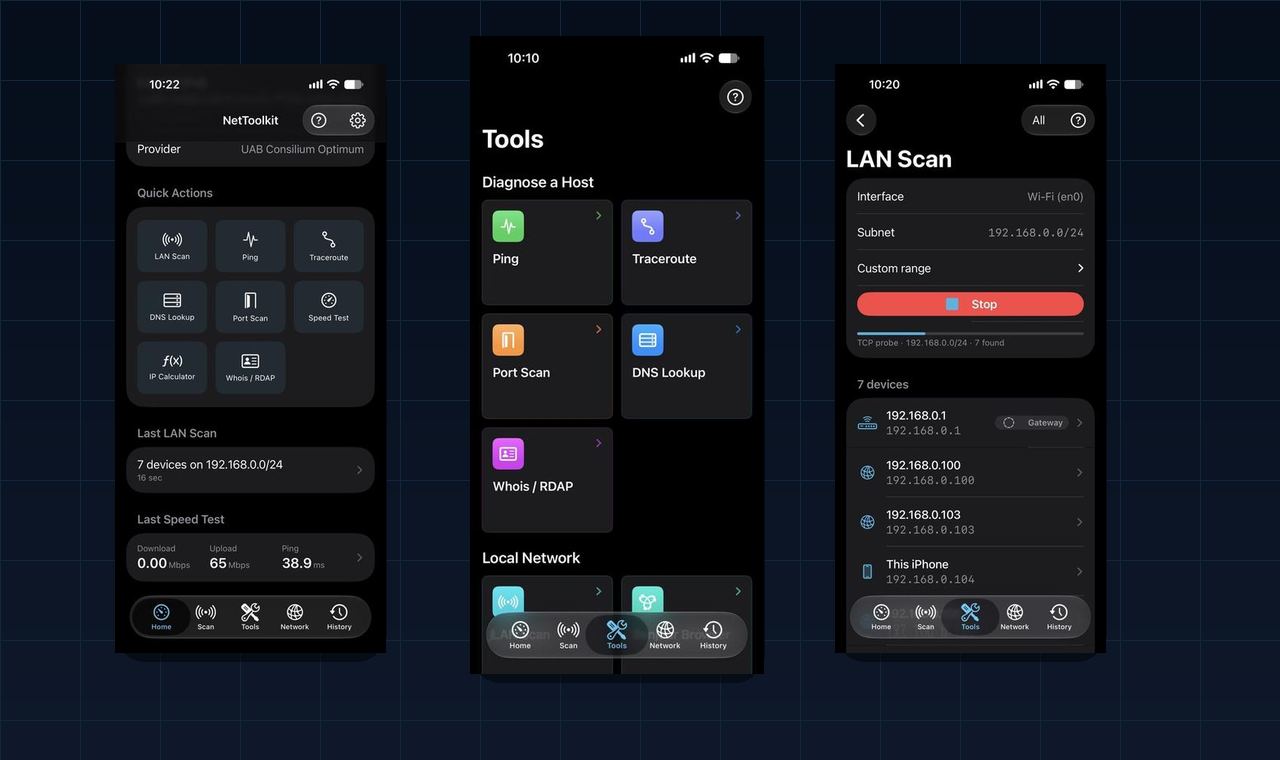
NetToolkit iPhone screens showing the home dashboard, grouped tools, and LAN scan results.

Main UI

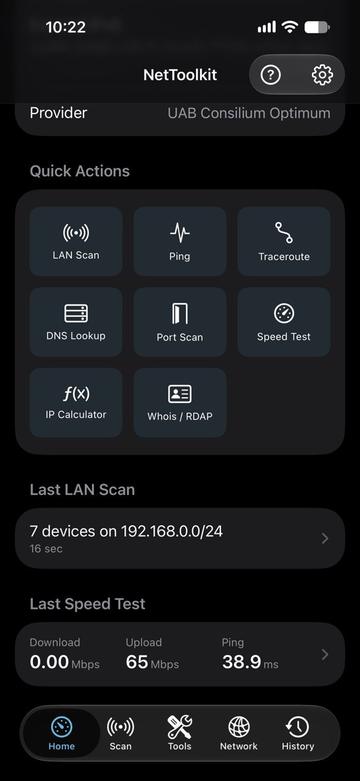
NetToolkit home dashboard with quick actions and recent results.

Home dashboard

Connection summary, quick actions, latest LAN scan, and latest speed test in one place.
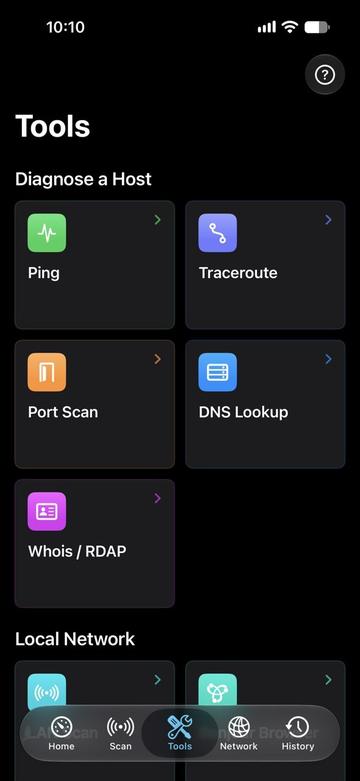
NetToolkit grouped diagnostic tools screen.

Grouped tools

Host diagnostics, local network tools, internet checks, and calculators are grouped for fast access.
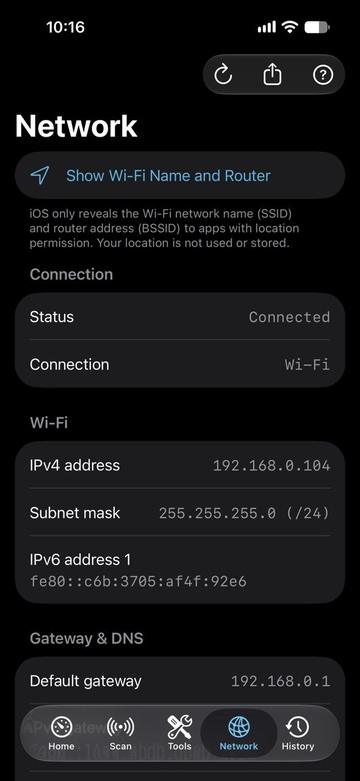
NetToolkit network details screen.

Network details

Wi-Fi, addresses, gateway, DNS, provider, and interface details are shown in a readable format.
Quick Start

  1. Open NetToolkit on a physical iPhone connected to the network you want to inspect.
  2. Use the Home tab for a quick overview of your current connection and common actions.
  3. Open Scan to find devices on the local network. Allow Local Network access when iOS asks.
  4. Open Tools for ping, traceroute, DNS lookup, Whois/RDAP, port scan, speed test, IP calculator, MAC lookup, Bonjour, UPnP, and Wake on LAN.
  5. Open History to review saved results, add notes, mark favorites, and export reports.

Working With Results

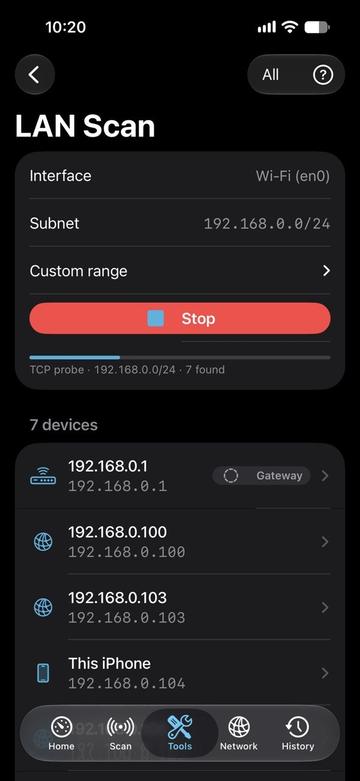
  • LAN Scan: finds reachable devices, names, addresses, vendors when available, and common services.
  • Ping and traceroute: checks reachability, latency, packet loss, and the route toward a host.
  • DNS and Whois/RDAP: helps inspect records, ownership, registration, and lookup behavior.
  • Port Scanner: checks selected TCP ports and labels likely open, closed, or filtered results.
  • Speed Test: measures latency, download, upload, and throughput using Cloudflare test endpoints.
NetToolkit LAN scan results with discovered devices.

Help UI

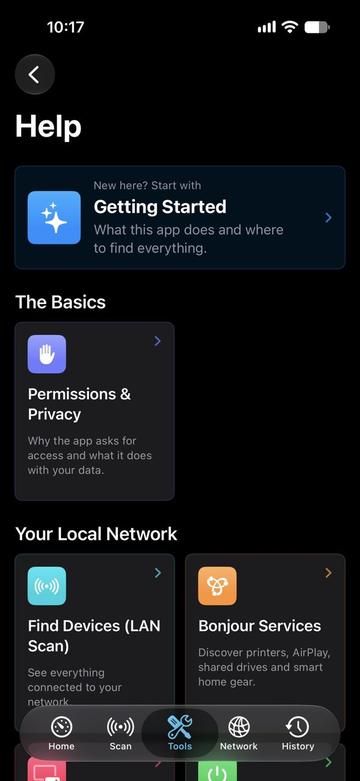
NetToolkit help library grouped by topic.

Guide library

Each tool has contextual help with steps, terminology, tips, and troubleshooting.
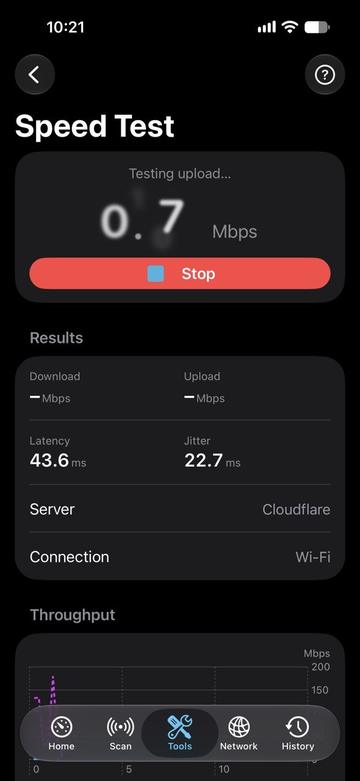
NetToolkit speed test running with live throughput results.

Live checks

Long-running tools show progress and can be stopped while keeping results found so far.
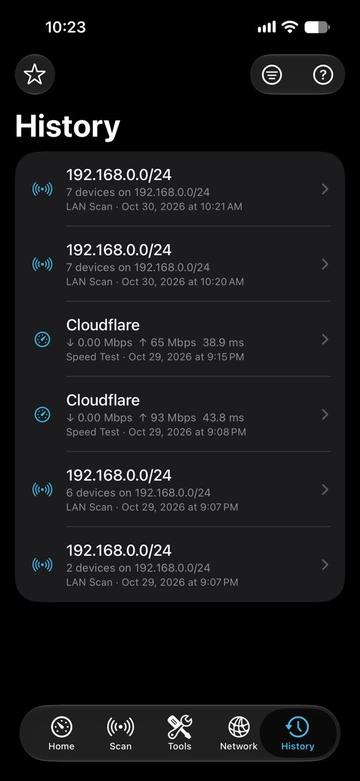
NetToolkit history list with saved network results.

Local history

Saved results stay on the iPhone and can be reviewed, annotated, favorited, or exported.

Permissions

  • Local Network: needed to discover and communicate with devices on your current network.
  • Location: iOS requires location permission before apps can read the Wi-Fi network name. NetToolkit uses this only to display the Wi-Fi name.
  • Tracking: if the free version shows ads, iOS may ask for App Tracking Transparency permission before advertising services use tracking identifiers.

Internet Services Used By Tools

Some tools contact internet services to produce results: Cloudflare for speed testing, ipify for external IP lookup, ipinfo.io for optional geolocation and ASN details, Whois servers and rdap.org for registration lookups, plus DNS servers and hosts that you choose to test. Private local addresses are not sent to geolocation services.

Ads and Purchases

The free version may show banner ads. NetToolkit may offer a Remove Ads in-app purchase handled by Apple StoreKit. If ads remain after purchase, use Restore Purchases in the app with the same App Store account.

Troubleshooting

  • If LAN scan finds few devices, confirm Local Network access is enabled in iOS Settings and that you are connected to the intended Wi-Fi, hotspot, VPN, or wired network.
  • If the Wi-Fi name is hidden, allow Location permission or continue using the app without the SSID display.
  • If ping, traceroute, or port scanning looks blocked, test another host and check firewalls, VPNs, carrier networks, and router settings.
  • If DNS or Whois lookups fail, try the system resolver, a known DNS server, or retry later because registries and resolvers can rate-limit or refuse some requests.
  • If speed results vary, run several tests and avoid comparing results while other devices are heavily using the same network.

Privacy Summary

NetToolkit does not require an account. History, device names, notes, favorites, and app preferences are stored locally on your iPhone. The app sends no custom analytics to a developer server. Network tools contact the hosts and services required for the specific tool you run.

Read the full NetToolkit Privacy Policy for details about permissions, local data, internet services, ads, purchases, and retention.

Contact

For support, contact Oleg Bourdo at tech_support@vozhyk.com.