iOS application support
WormKnight Help and Support
Usage guide for WormKnight on iPhone. Last updated: November 15, 2026.
Waiting for Review iOS 1.0 Waiting for Review
WormKnight is a security guidance utility for iPhone. It checks device settings and network risk signals that iOS makes available, helps you review app names and website domains, and explains practical next steps in plain language.
WormKnight is not antivirus software. It cannot inspect the private contents of other apps, read other apps' network traffic, remove malware, guarantee detection, or prevent every attack.
Security guidance shield
Run a short scan, review clear findings, and use the Check tab for app names or suspicious links.
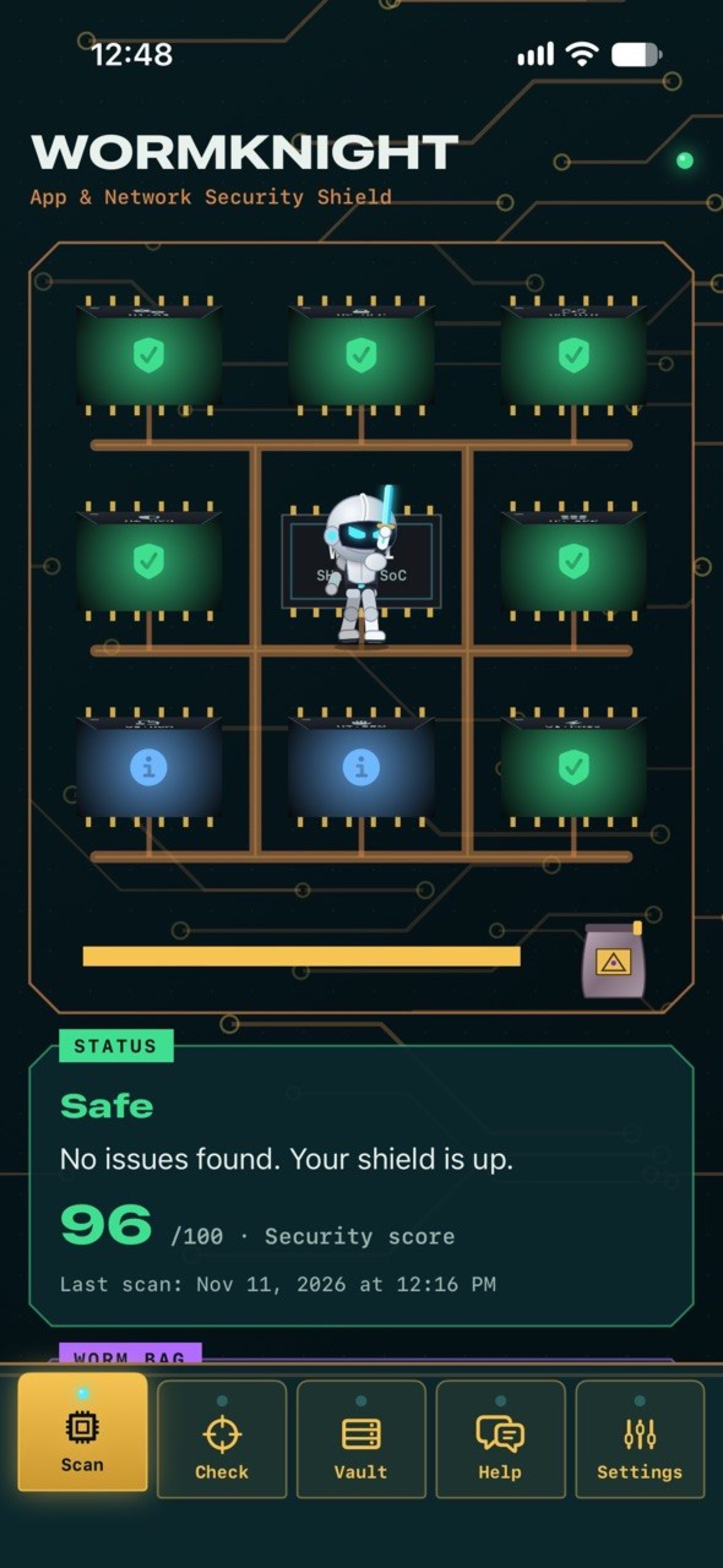
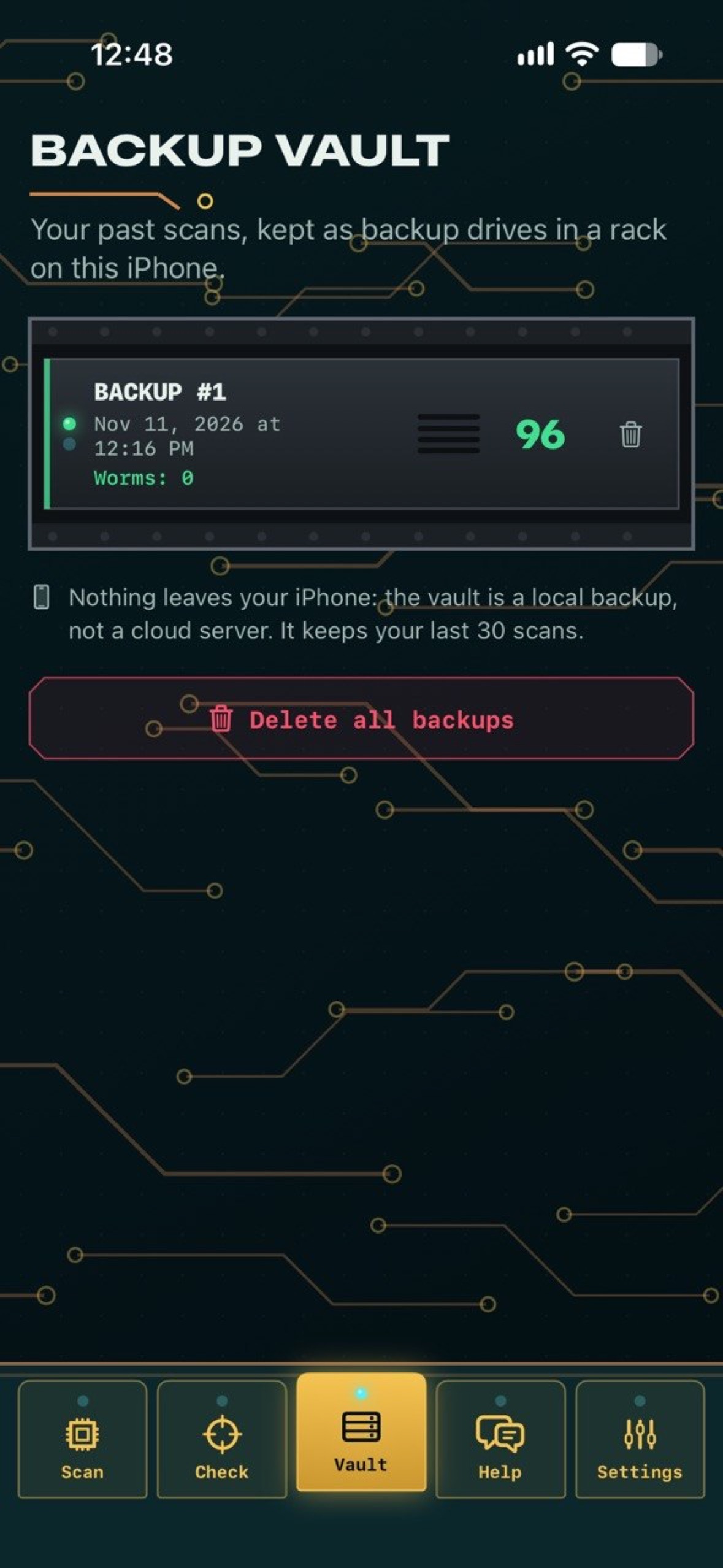
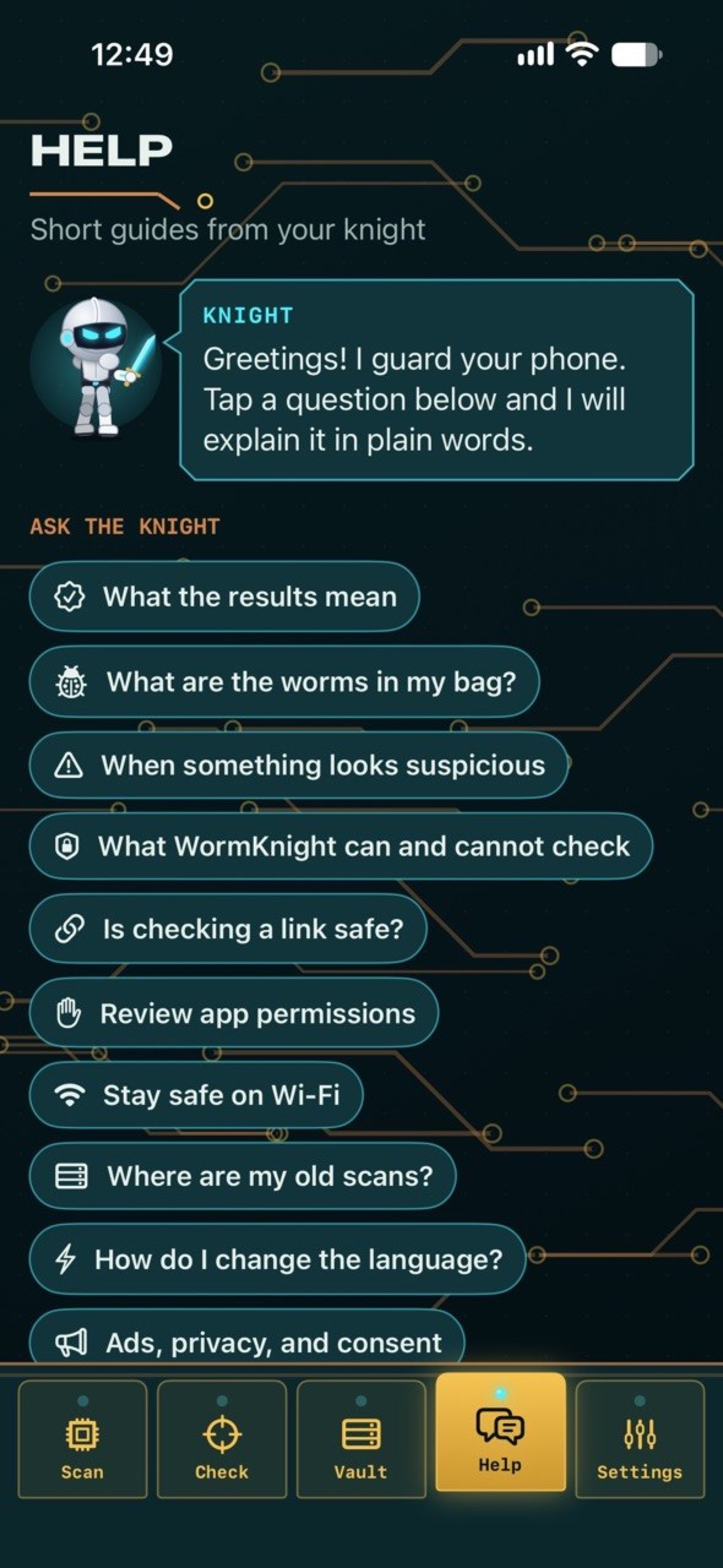
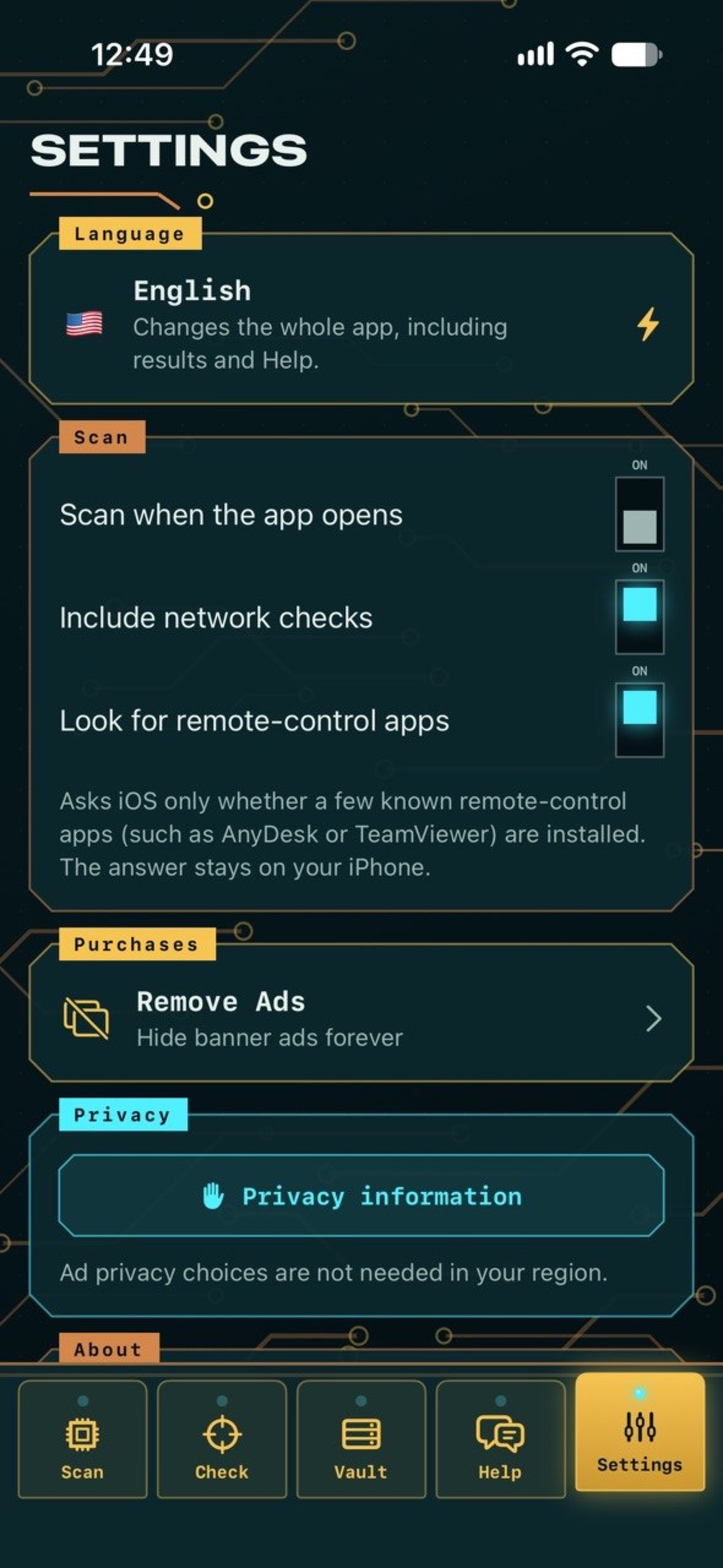
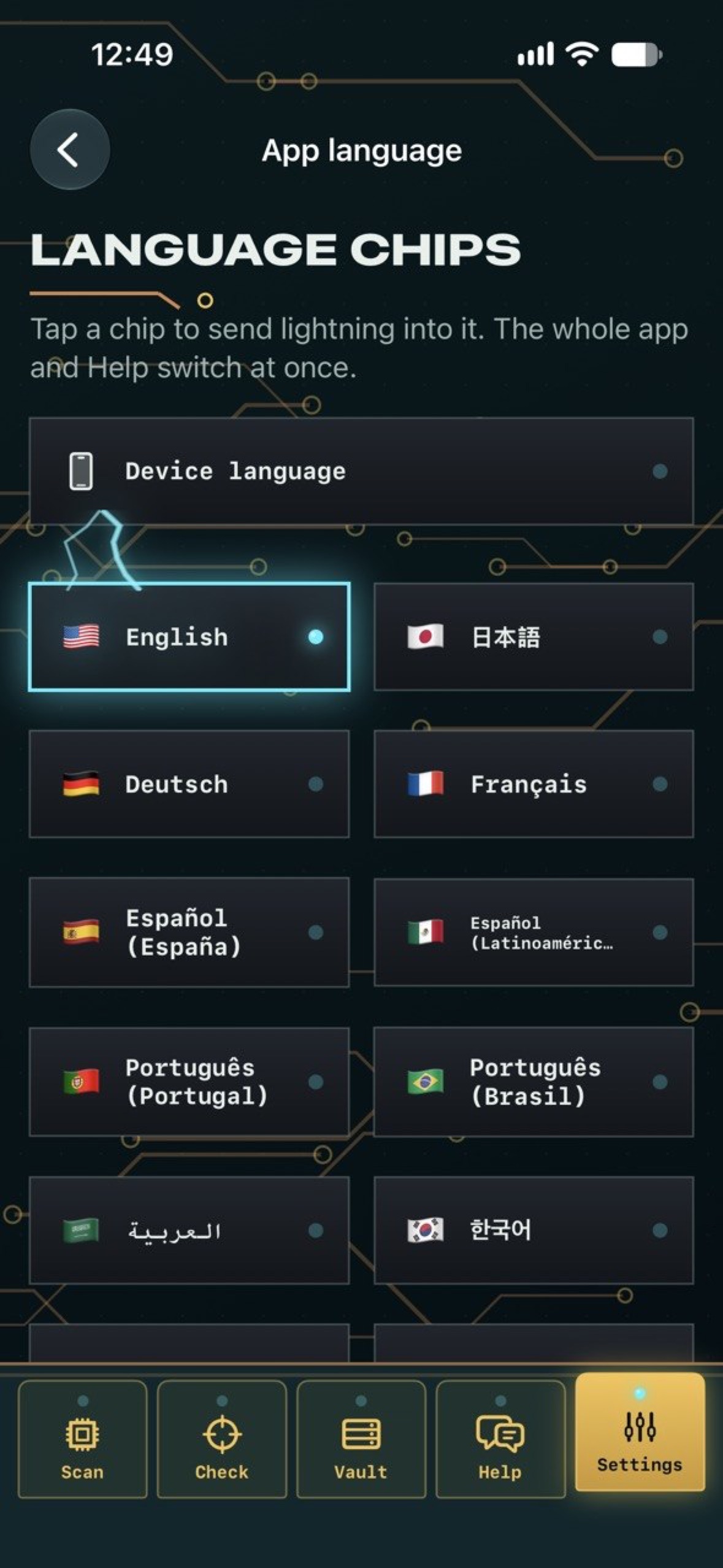
WormKnight now uses a copper-circuit board interface: the knight opens device-check chips, catches suspicious findings as worms, saves past scans in a local Backup Vault, and keeps app, link, Help, language, and Remove Ads tools in a single bottom connector bar.
Quick Start
- Open the Scan tab and tap Start Scan.
- Wait for the device and network checks to finish, or stop the scan if needed.
- Review the score and finding groups: Approved, Checked, and Suspicious.
- Tap a finding to read what WormKnight checked, what it means, and what action you can take.
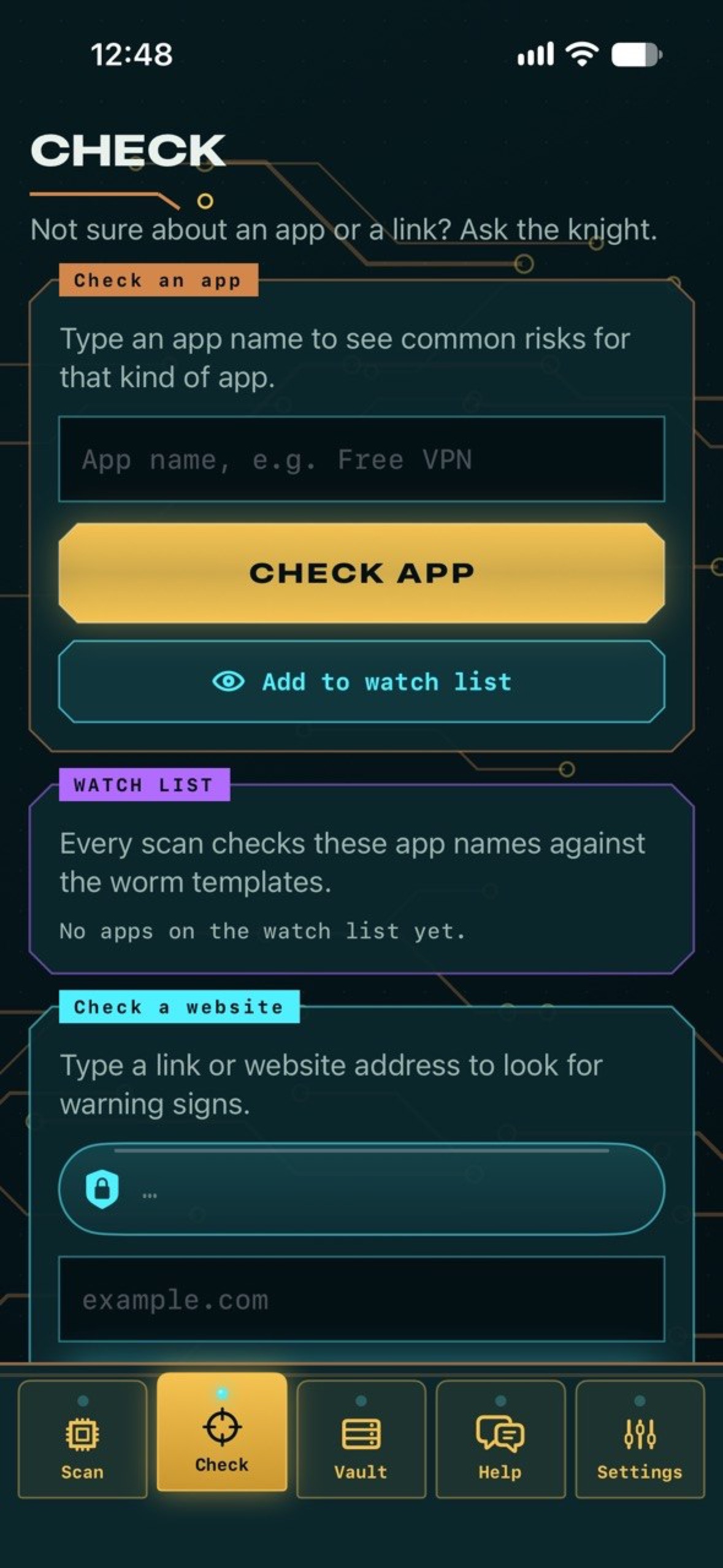
- Open the Check tab to review an app name or website domain for local risk-pattern guidance.
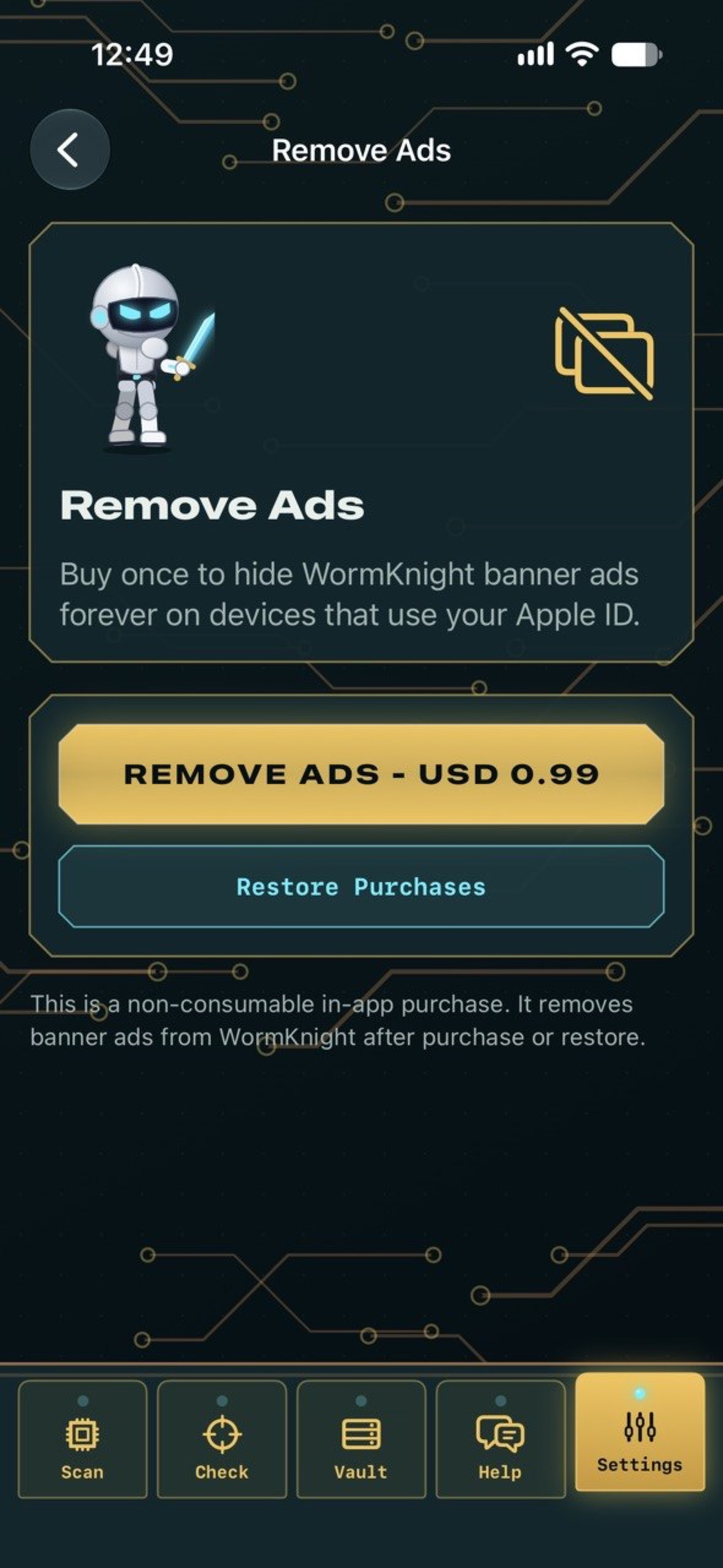
- Open Settings to change language, scan preferences, ad privacy options, or Remove Ads.
What WormKnight Checks
- iOS version and whether an update may be needed.
- Passcode and Face ID or Touch ID status where iOS exposes the result.
- Basic signs of system changes that are safe to check from an App Store app.
- Low Power Mode and current connection type.
- VPN and proxy signals available through public iOS APIs.
- Guidance to review profiles and app permissions in iOS Settings.
- Local app-name and website-domain risk patterns.
Understanding Results
- Approved means the check did not find a concern.
- Checked means WormKnight reviewed the area and has guidance, but the result is not automatically dangerous.
- Suspicious means the result deserves attention, such as an outdated iOS version, active proxy, VPN review need, or suspicious link pattern.
- A suspicious result does not prove that your device is infected or under attack. It means you should read the recommendation and decide what to do next.
iOS Limits
iOS protects each app in its own sandbox. This is good for privacy and security, but it also means WormKnight cannot see inside other apps, list every installed app, read another app's private data, capture all network packets, or monitor all background traffic. WormKnight focuses on the checks that iOS allows and explains what you can review manually in Settings.
Troubleshooting
- If network checks seem incomplete, make sure the device has a current connection and run the scan again.
- If a VPN or proxy result is unexpected, review iOS Settings > General > VPN & Device Management and your Wi-Fi proxy settings.
- If a finding asks you to review permissions, open iOS Settings > Privacy & Security and check the listed areas manually.
- If ads do not appear for free users, network access or consent state may prevent ad loading.
- If Remove Ads is active on another device, use Restore Purchases while signed in with the same App Store account.
Privacy and Data
- No account is required.
- Scan results, app-name checks, domain checks, settings, language, and theme preferences are stored locally on the device.
- WormKnight does not upload scan results to a custom Vozhyk server.
- The free version may show Google Mobile Ads banner ads at the top of app screens.
- Remove Ads is handled through Apple StoreKit as a one-time non-consumable purchase.
Read the full WormKnight Privacy Policy.
Support
For support, contact:
Oleg Bourdo
tech_support@vozhyk.com