Deployed iOS application
MyFinance Help and Support
Usage guide for MyFinance on iPhone. Last updated: October 17, 2026.
MyFinance helps you track personal income, spending, accounts, family tags, multi-currency transactions, crypto holdings, investments, and optional Lithuania small-business bookkeeping.
MyFinance is informational only. It is not financial, investment, tax, bookkeeping, accounting, or legal advice. Verify important decisions and filing obligations with the official provider, VMI, Sodra, or a qualified professional.
Local-first finance tracker
Track the week, add records, and review reports from one iPhone app.
MyFinance is designed around repeated daily use: quick income and spending entry, period-based summaries, readable reports, and optional business tools kept separate from personal records.
Quick Start
- Open the app. Default categories and account names are created automatically.
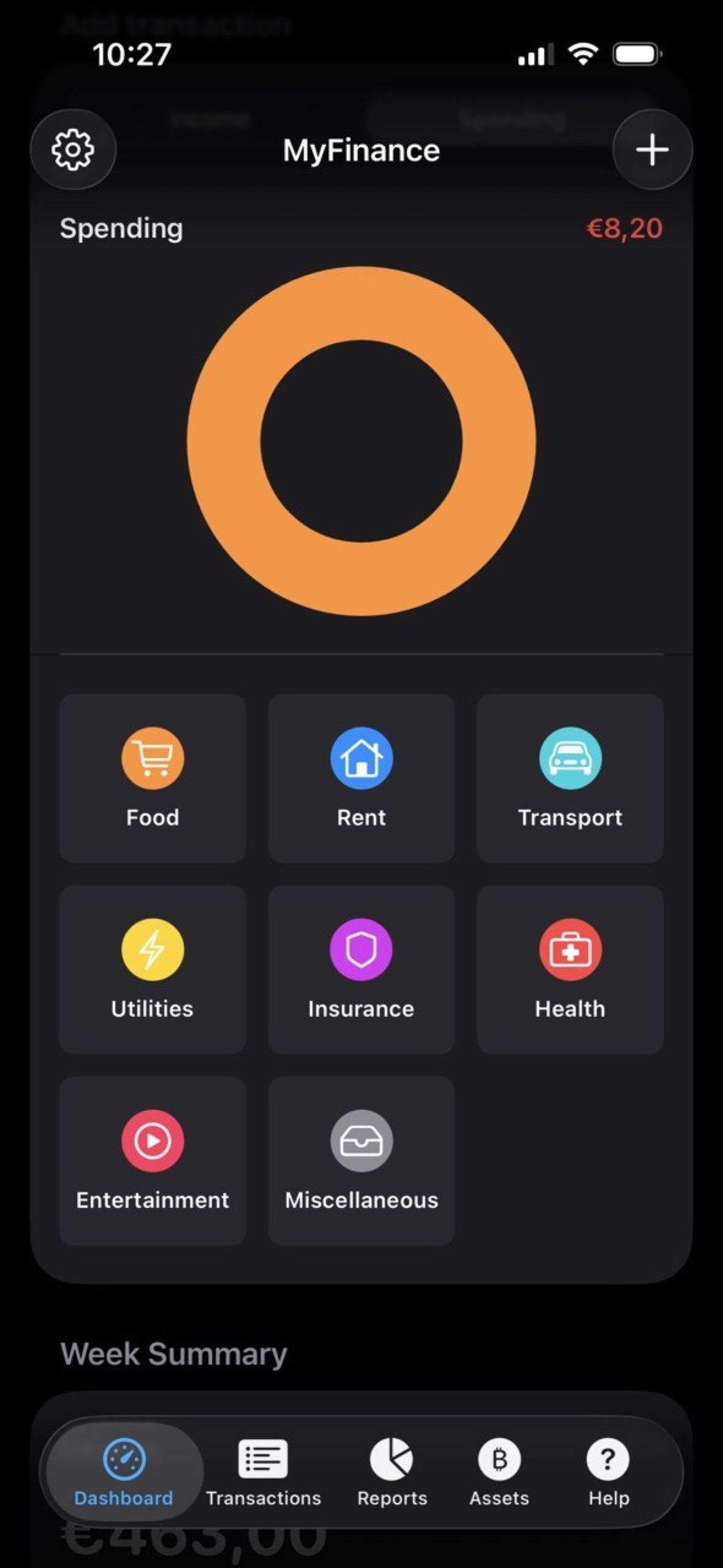
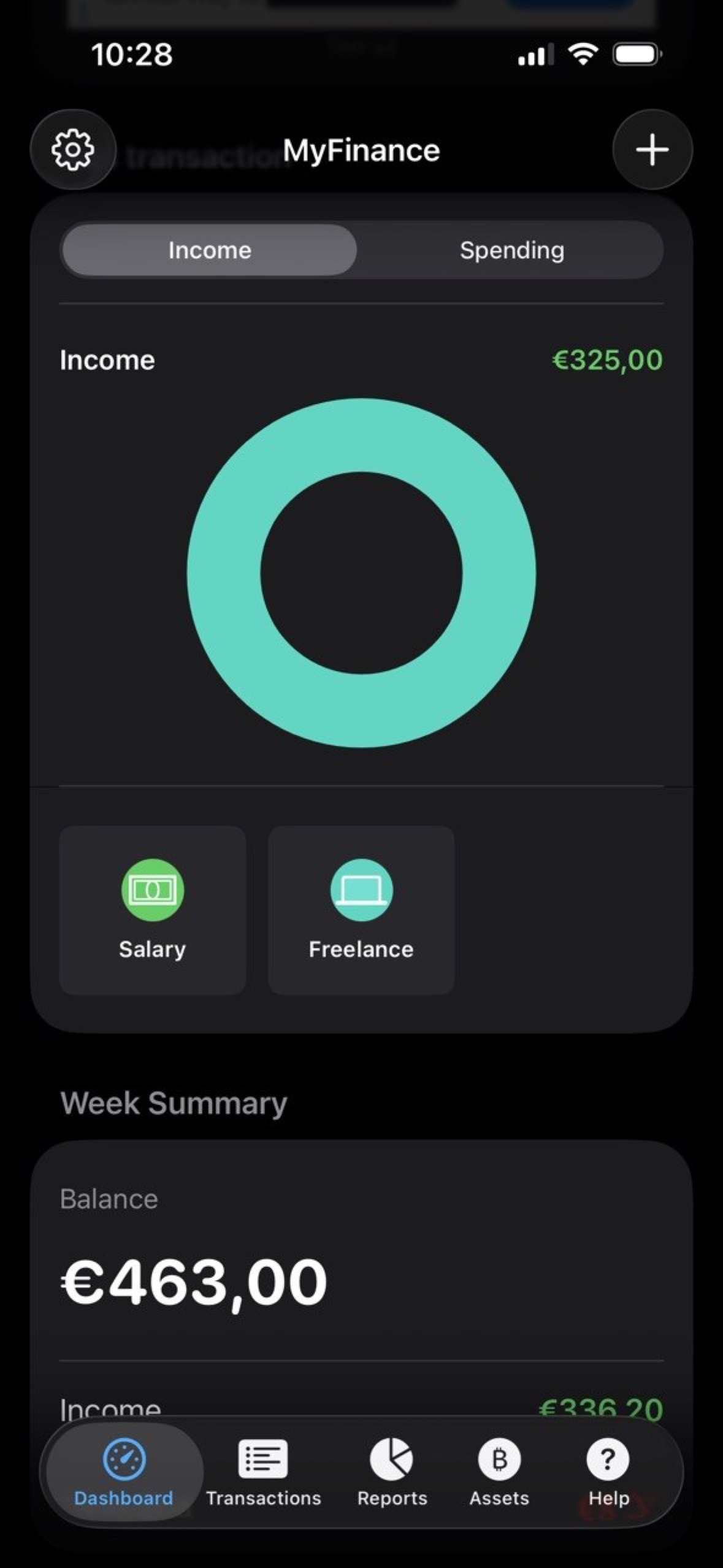
- Use Dashboard for a fast view of income, spending, balance, recent records, and quick add buttons.
- Tap the plus button to add income or spending.
- Open Transactions to review, search, and manage saved records.
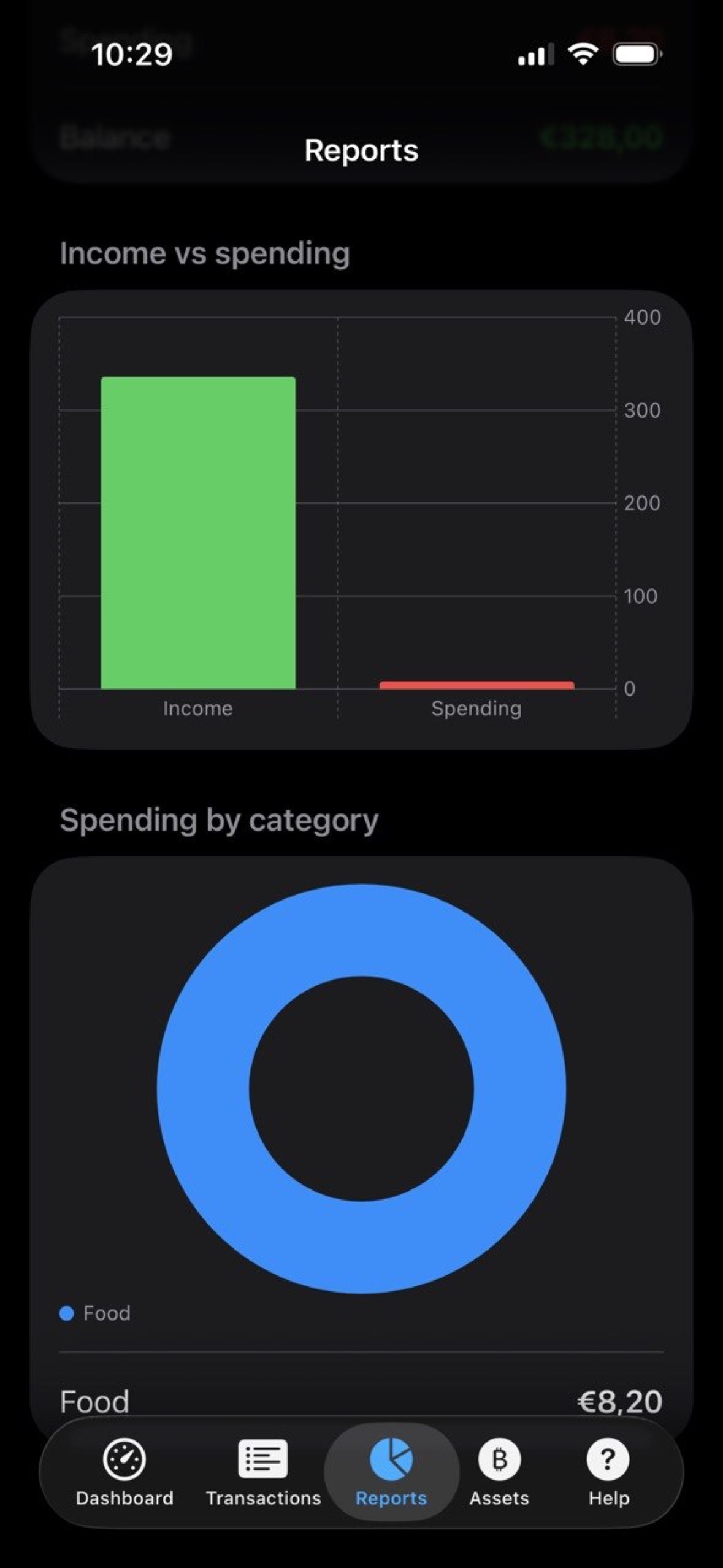
- Open Reports to compare income, spending, balance, and category totals by period.
- Open Assets to track crypto holdings and investments.
- Open Settings to manage categories, saved names, family members, accounts, ads, language, and the Lithuania business workspace.
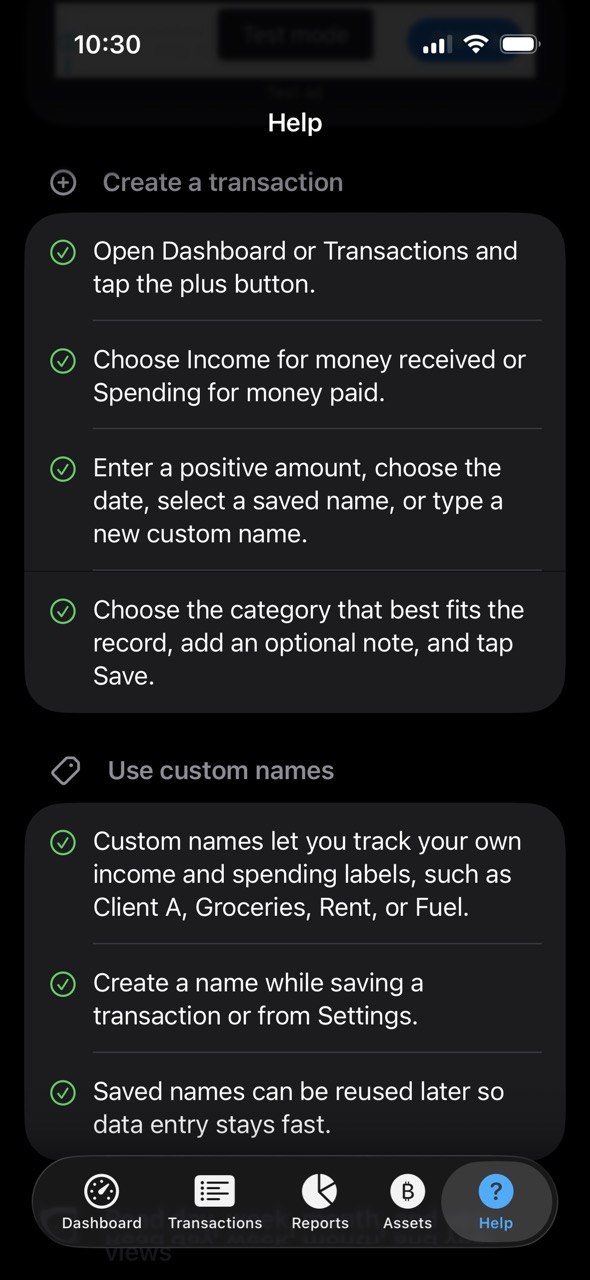
Create a Transaction
- Open Dashboard or Transactions and tap the plus button.
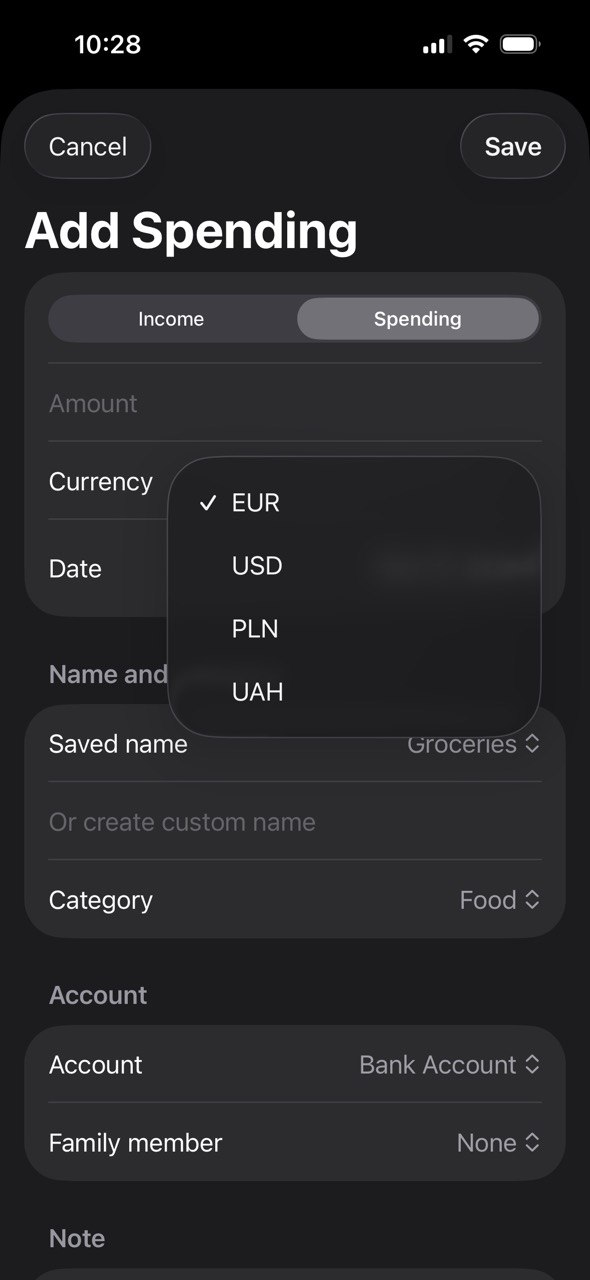
- Choose Income for money received or Spending for money paid.
- Enter a positive amount.
- Choose the currency: EUR, USD, PLN, or UAH.
- Select a date.
- Select a saved name or type a new custom name.
- Choose the category that best fits the record.
- Choose the account or provider, optionally select a family member, add an optional note, and save.
Amounts are stored in the original currency and converted to EUR for summaries when an exchange rate is available. Check the rate before relying on totals.
Transaction tips
- Use Income for money received and Spending for money paid.
- Choose the original transaction currency before saving.
- Saved names and categories keep frequent entries fast.
Custom Names, Categories, Accounts, and Family Members
- Custom names let you reuse labels such as Client A, Groceries, Rent, Fuel, Salary, or Freelance.
- Create custom names while saving a transaction or from Settings.
- Create custom categories in Settings when the default categories do not fit your records.
- Use balance accounts to separate cash, bank accounts, cards, wallets, and other places where money is held.
- Edit an account balance in Settings when you need a manual correction; the app records an adjustment transaction for history.
- Add family members in Settings when you want to tag records by person.
Read Day, Week, Month, and Year Views
- Use the period switcher on Dashboard, Transactions, and Reports.
- Day shows today's records.
- Week shows the current calendar week.
- Month shows the current month.
- Year shows the current year.
- Reports recalculate income, spending, balance, and category totals for the selected period.
CSV Import
Use Transactions and tap the document-plus button to import a CSV file. A valid header is:
date,amount,currency,type,category,name,account,family,note- Supported currencies are EUR, USD, PLN, and UAH.
- Type should be income or expense.
- Rows with unsupported currency or invalid values may be skipped.
- Review imported records after import.
Track Crypto by Coin
- Open Assets.
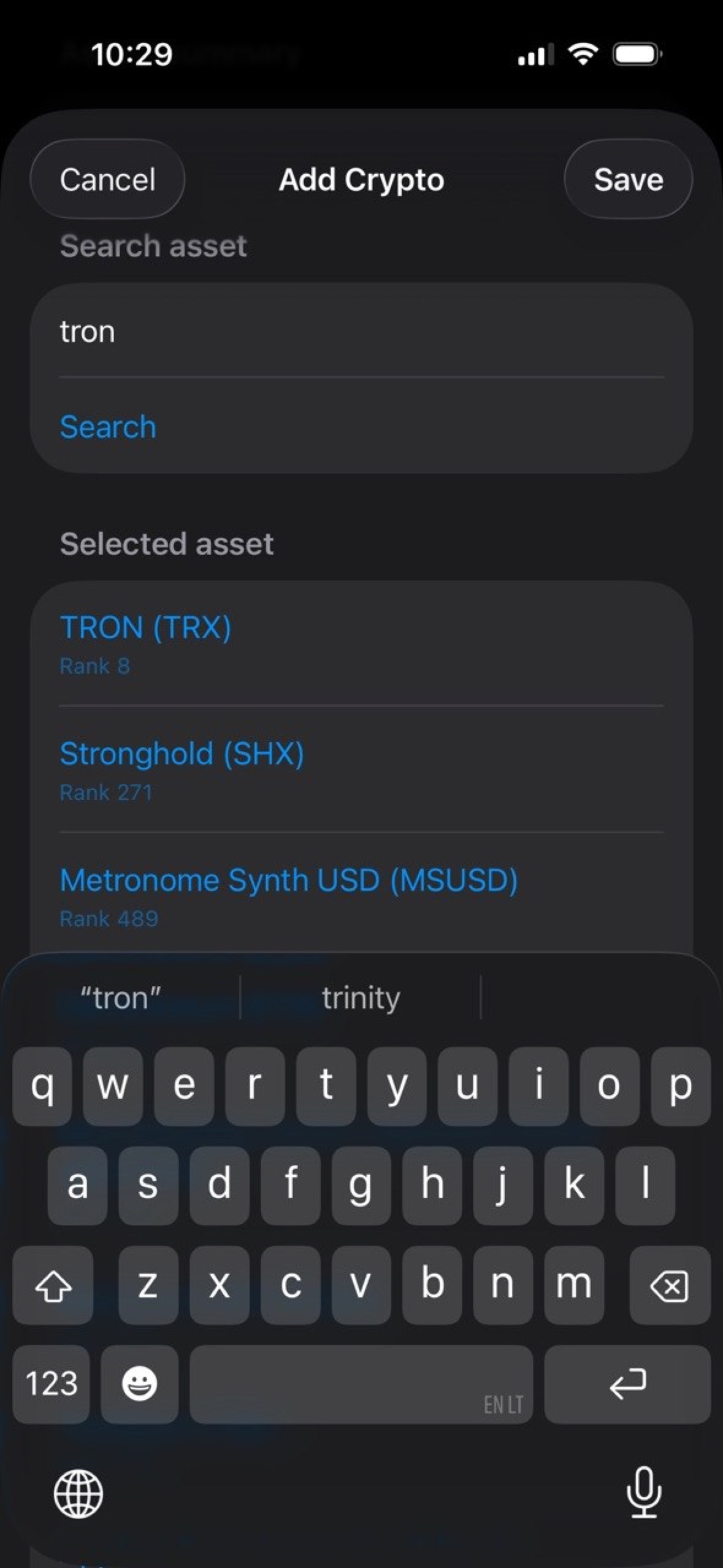
- Add each coin separately.
- Enter coin name, symbol, quantity, average purchase price, current value, and wallet or exchange.
- Use refresh where available to update market values from the configured market provider.
Crypto market values are informational and may be delayed, unavailable, or different from the price offered by your exchange.
Track Investments
- Open Assets.
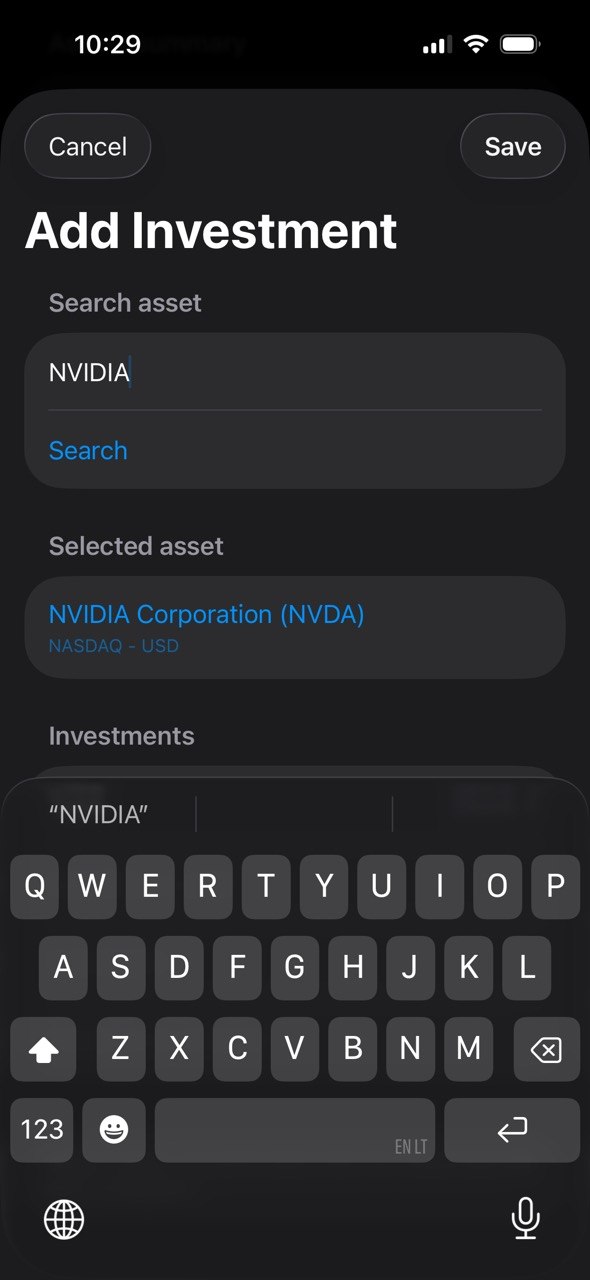
- Add each investment item separately.
- Choose the investment type, then enter quantity, cost basis, current value, and provider or account.
- Use the built-in popular share search for common stocks. Broader live share lookup depends on the configured market data key.
Use this area for stocks, ETFs, funds, savings, pension records, real estate, or other investments. Values are for your own tracking and are not investment advice.
Lithuania Small-Business Bookkeeping
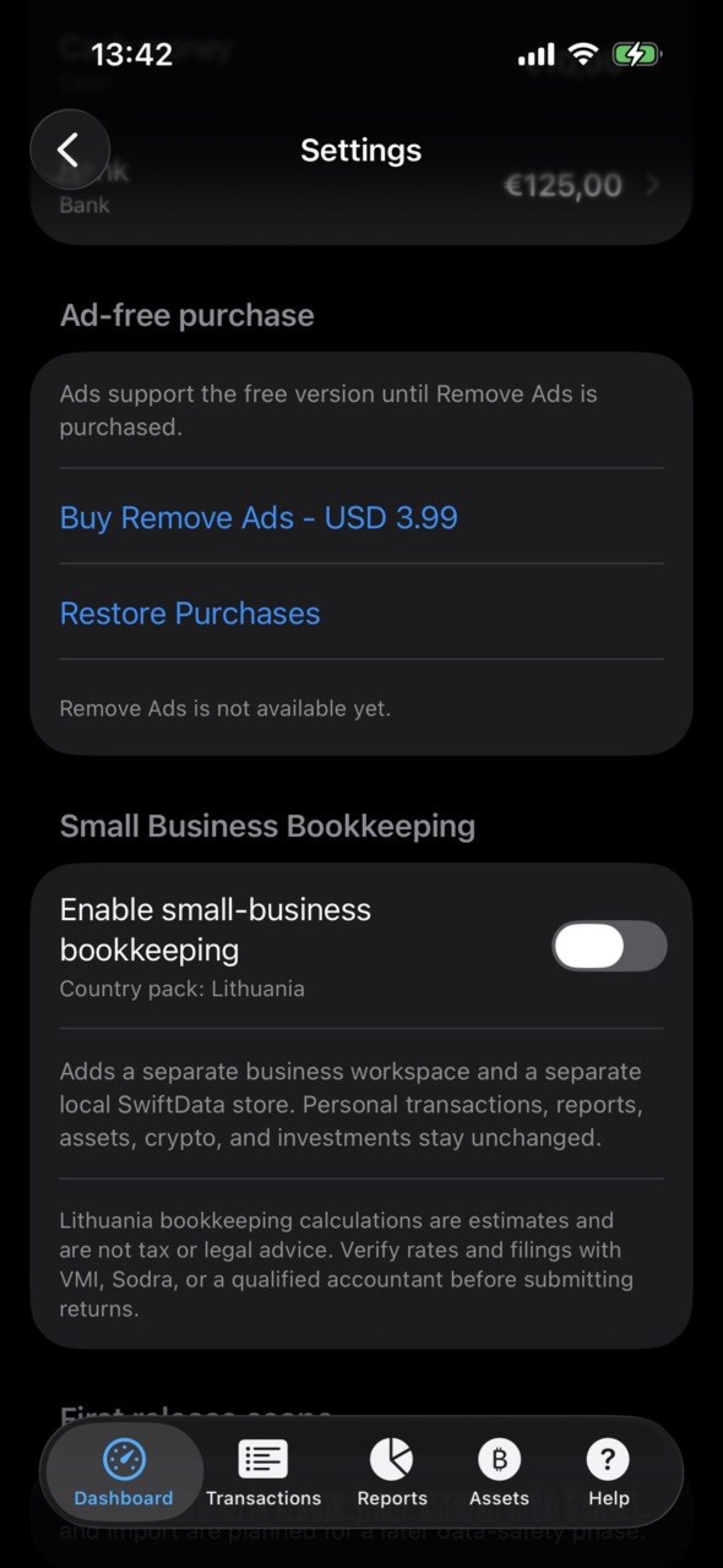
Enable the business workspace
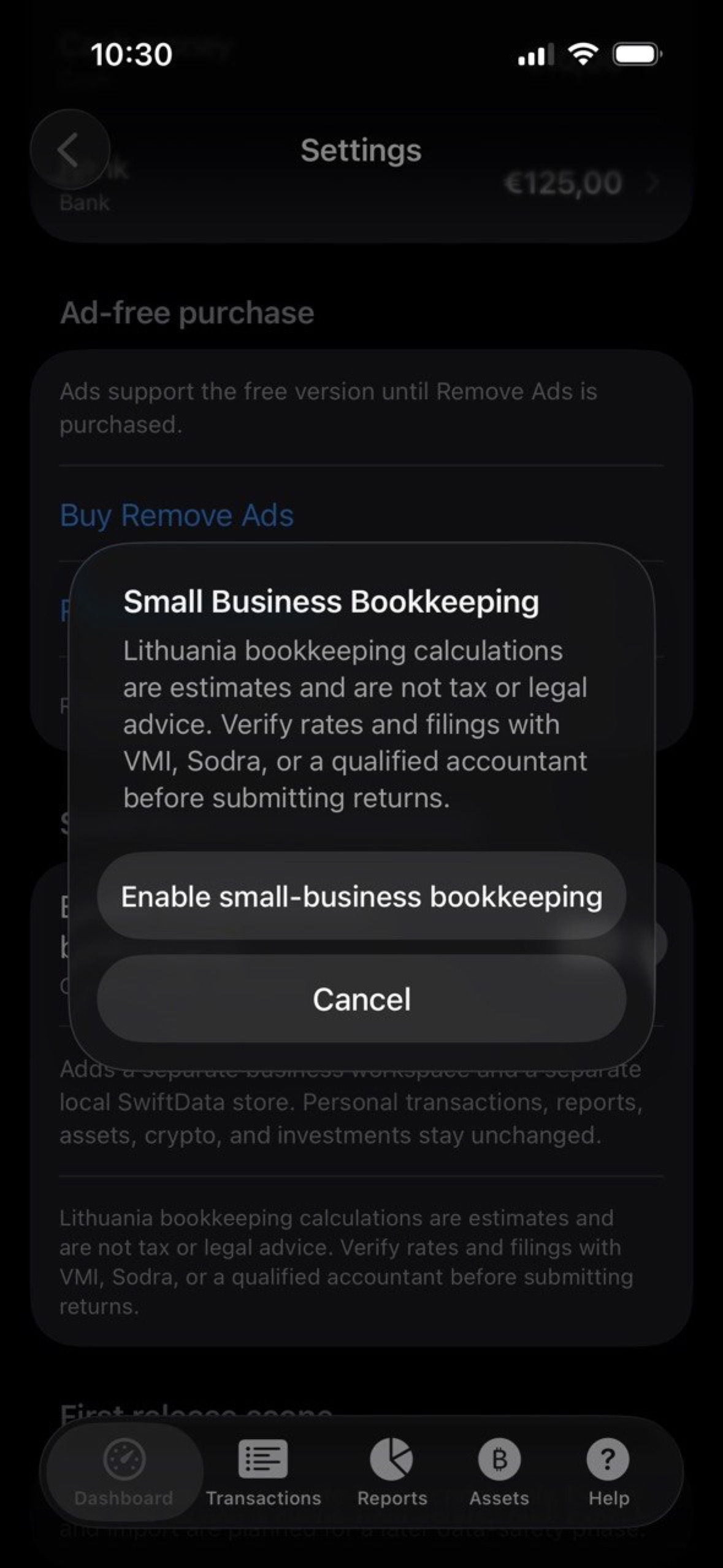
- Open Settings.
- Enable Small Business Bookkeeping.
- Read and accept the Lithuania compliance disclaimer.
- Use the workspace switcher at the top of the app to move between Home and Business.
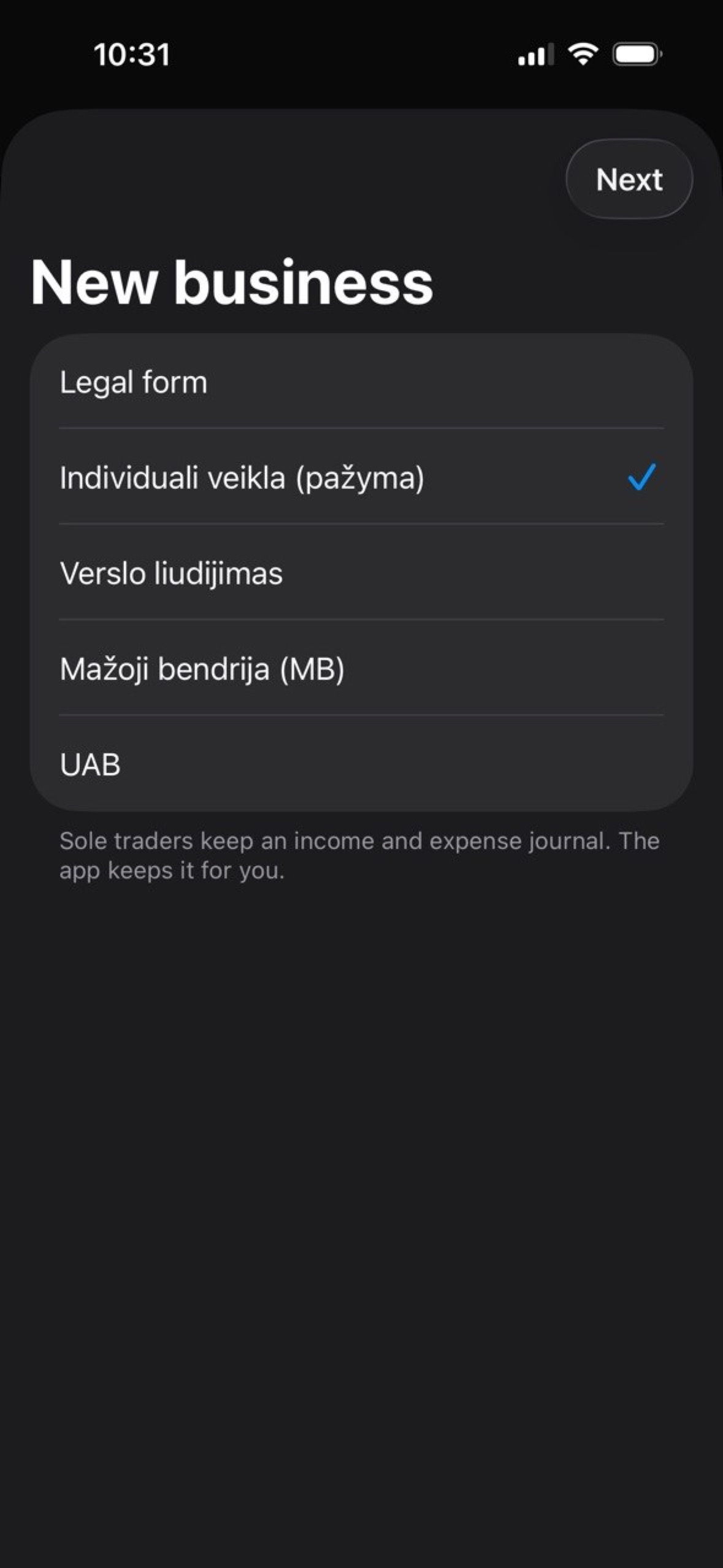
- Tap Add business and complete the business profile.
First setup fields
- Legal form: choose Individuali veikla, Verslo liudijimas, MB, or UAB.
- Name: use the name shown on your activity certificate, business licence, or company registration.
- Personal or company code: use the taxpayer or company code that belongs on documents and payments.
- Certificate number: enter the VMI certificate number when using Individuali veikla.
- Activity start: use the real business start date.
- Expense method: choose actual expenses or the 30% method where applicable.
- Pension accumulation, employment status, and VAT payer settings affect estimates.
- Invoice series and IBAN appear in business workflows and payment context.
Business workflow
- Issue invoices when you sell goods or services. Check buyer details, line descriptions, quantities, prices, VAT settings, and dates before issuing.
- Record payments when money is received, especially for individual activity cash-basis views.
- Enter expenses from supplier invoices, receipts, or other supporting documents.
- Use business-use percentage when a purchase is partly personal.
- Review Overview for income, deductible expenses, taxable profit, estimates, thresholds, and deadlines.
- Use Journal before filing or sending data to an accountant.
- Open Help inside the business workspace for field-by-field guidance.
What you still do outside MyFinance
- Keep original invoices, receipts, contracts, and bank statements for the required retention period.
- Submit required forms yourself in VMI EDS, i.SAF, and Mano Sodra where applicable.
- Pay taxes or fees through your bank or the official payment channel.
- Verify current rates, thresholds, deadlines, and legal obligations before filing.
- Use an accountant for MB/UAB full company accounting, payroll, and annual statements.
Ads and Remove Ads
- MyFinance may show advertising in the free version.
- If Remove Ads is available in App Store Connect, open Settings to purchase or restore it.
- After purchase or restore, ad placements are hidden for the Apple Account that owns the purchase.
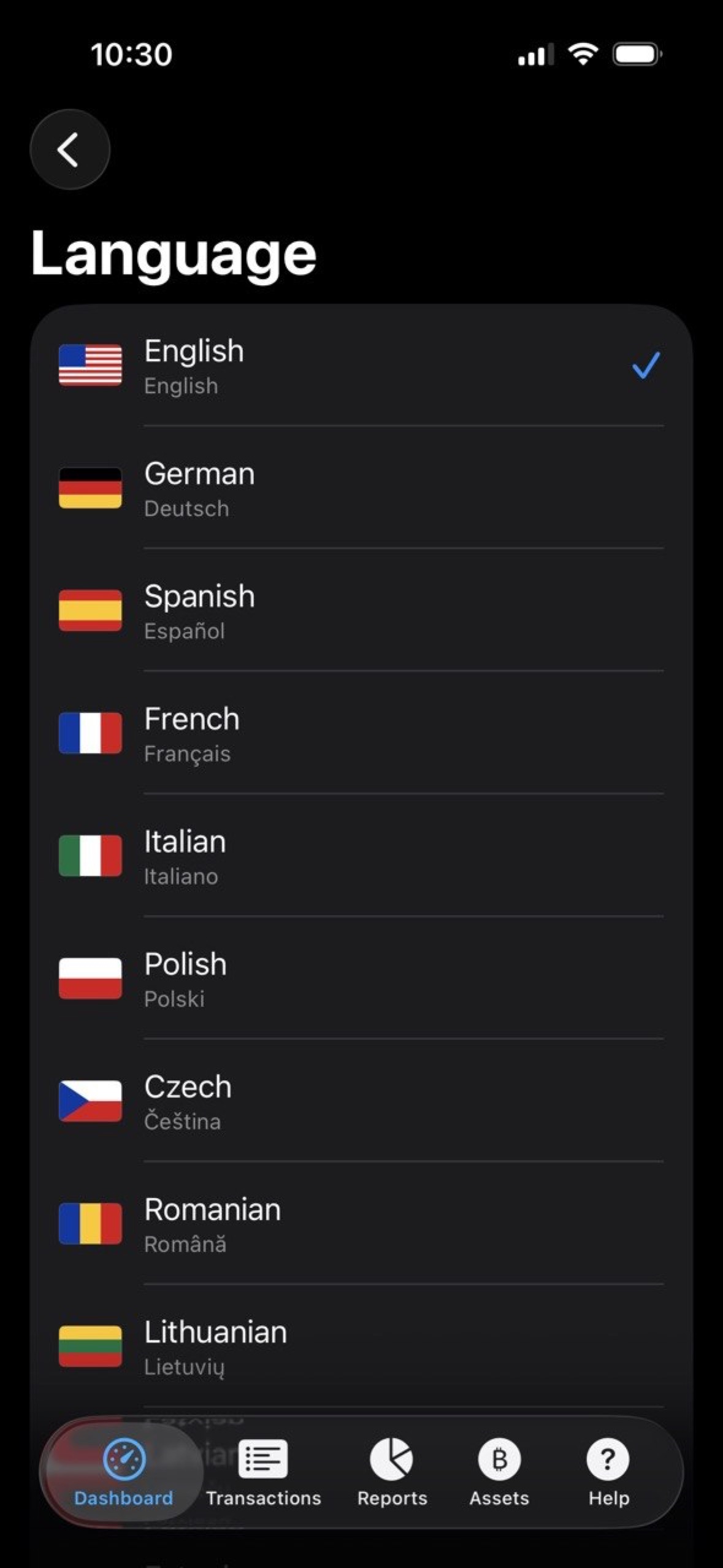
Language and Help
Privacy and Data
- MyFinance does not require an account.
- Your manually entered personal finance and business records are stored locally on your device.
- Market price and exchange-rate features may contact third-party providers with symbols or currency pairs.
- Advertising uses third-party Google ad technology when ads are enabled.
Read the full MyFinance Privacy Policy.
Support
For support, contact:
Oleg Bourdo
tech_support@vozhyk.com