Deployed iOS application
Magnetic Multi-Tool Help and Support
Usage guide for Magnetic Multi-Tool on iPhone. Last updated: October 19, 2026.
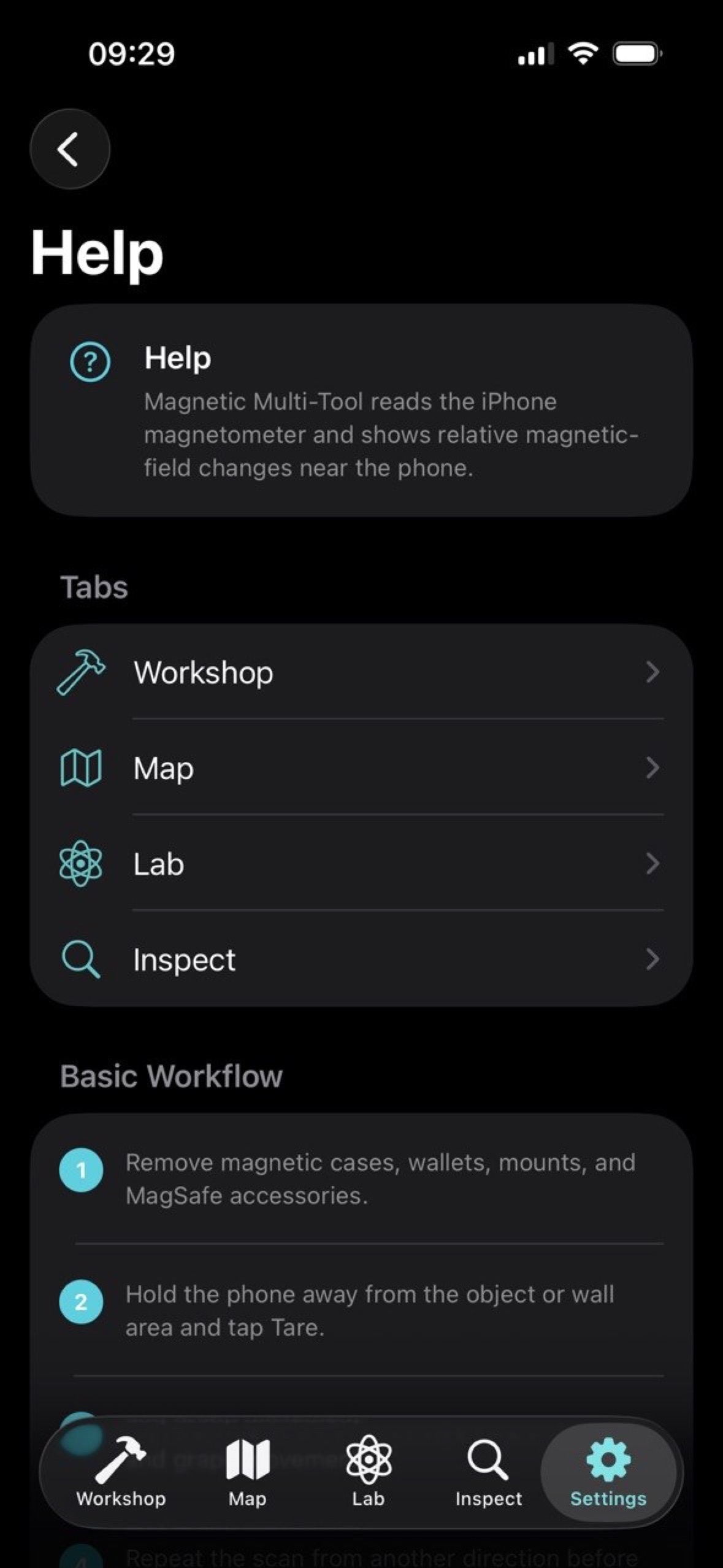
Magnetic Multi-Tool uses the iPhone magnetometer and motion sensors to show local magnetic-field changes for workshop checks, mapping, lab experiments, and inspection workflows.
The app reports magnetic anomalies and relative changes. It is not a safety tool and does not guarantee detection of wiring, pipes, wall structure, hidden devices, hazardous materials, or safe drilling areas.
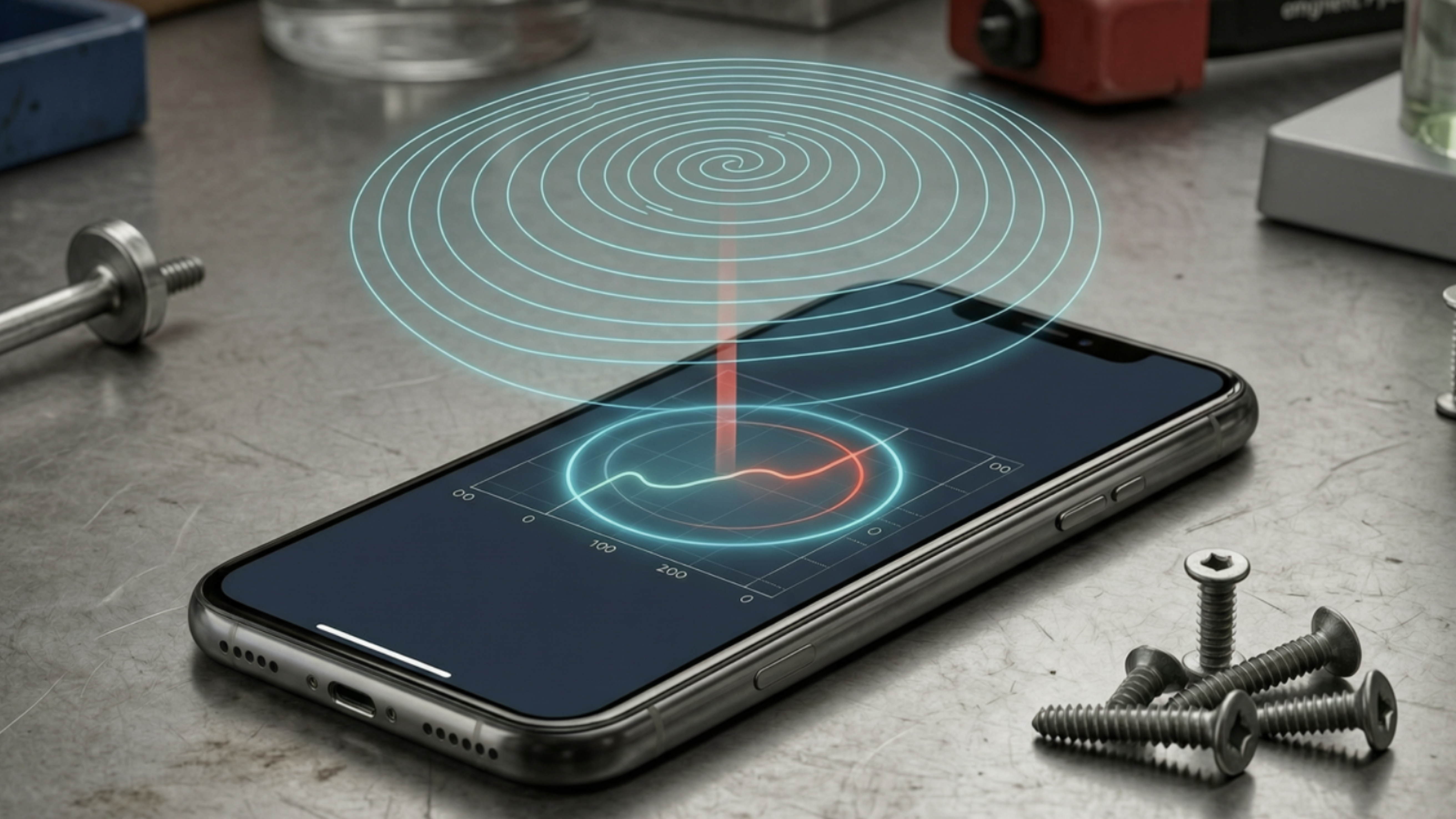
Magnetic-field tools for iPhone
Tare the baseline, scan slowly, and compare magnetic changes across tools.
Use Workshop for quick detection, Map to save local walks, Lab for vector and pendulum experiments, and Inspect for localized sweeps with false-positive guidance.
Quick Start
- Remove magnetic phone cases, wallets, mounts, and MagSafe accessories when possible.
- Hold the iPhone away from the object, wall, or test area.
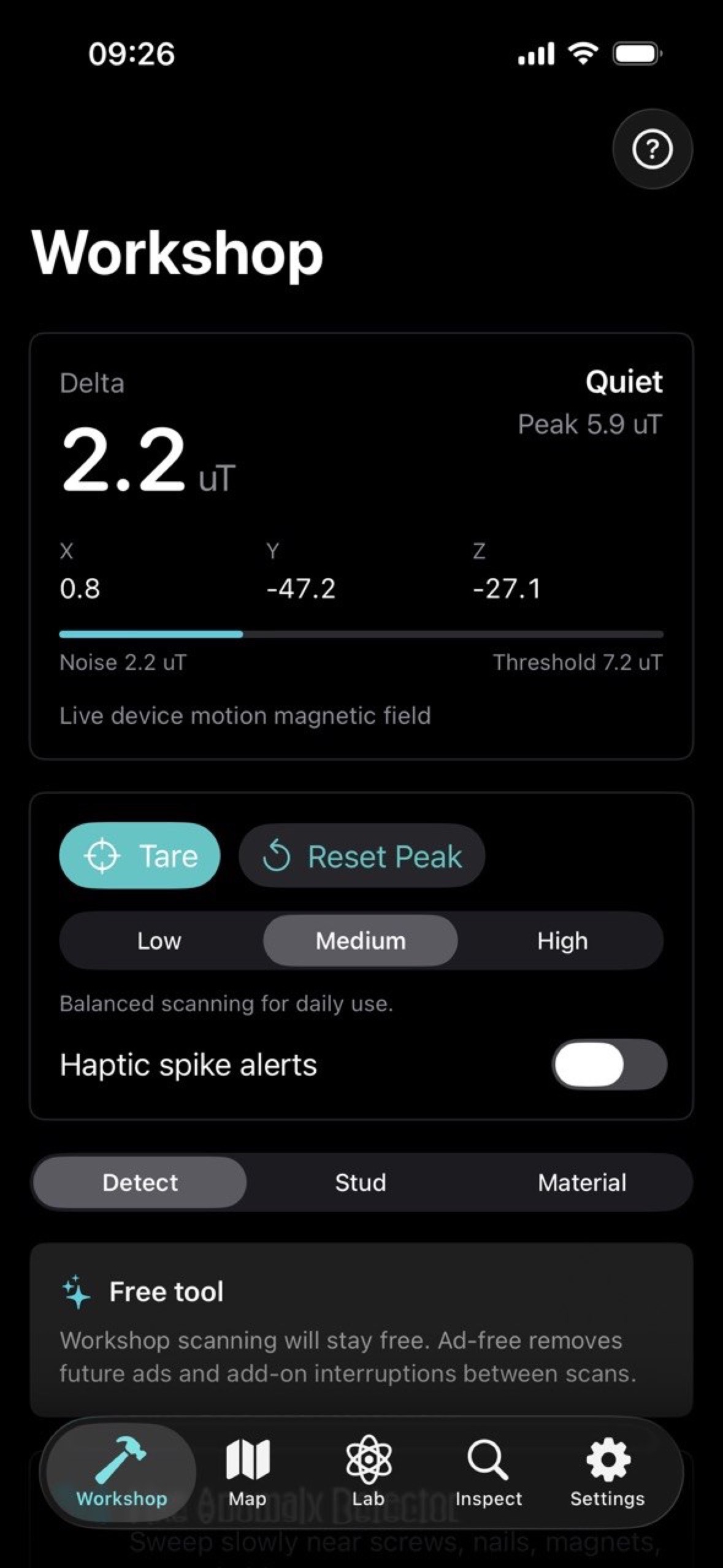
- Tap Tare to set the current local magnetic baseline.
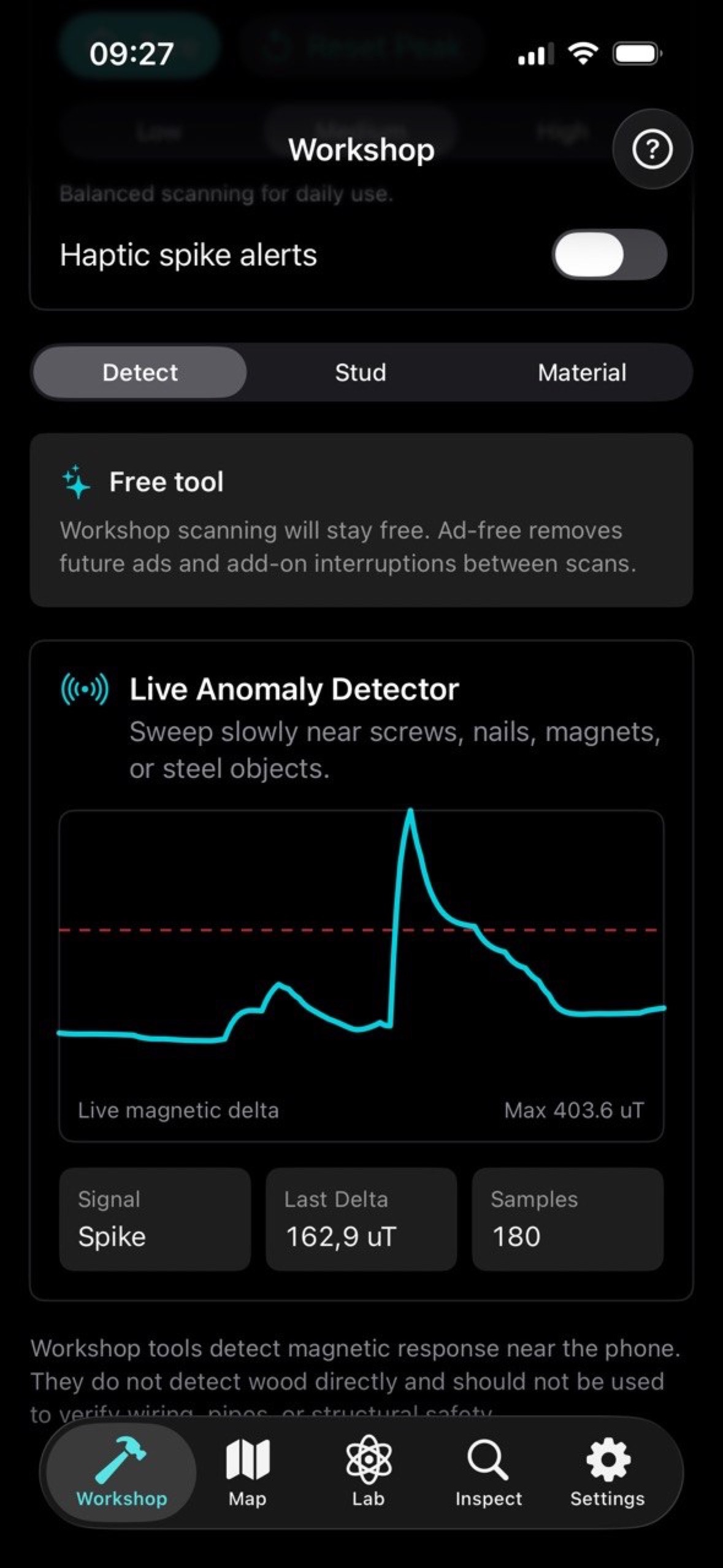
- Move the phone slowly and watch the live delta, peak, threshold, and graph.
- Confirm interesting peaks by scanning from another direction and distance.
Workshop Tools
- Detector mode shows live magnetic-field changes relative to the tared baseline.
- Stud finder mode helps compare repeated peaks along a scan line, but it does not identify wall structure by itself.
- Material check mode helps compare nearby object response and should be repeated from multiple angles.
- Use sensitivity presets and tare again when moving to a different room, wall, or object.
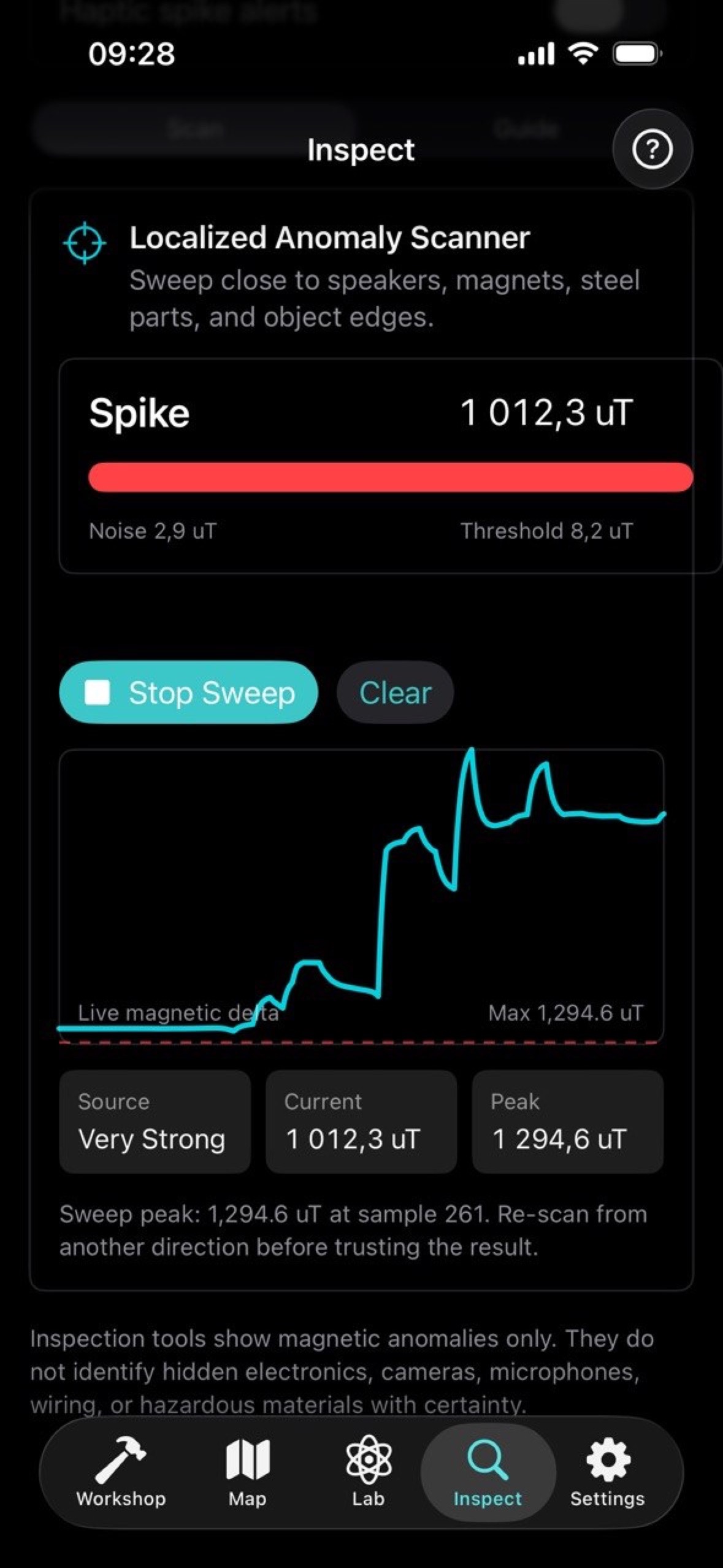
Map Sessions
- Open Map and tap Start when you are ready to walk or sweep an area.
- Move at a steady pace and avoid rotating the phone unnecessarily.
- Stop the recording to review trace metrics and save the local session.
- Open saved sessions to compare peaks, averages, and scan notes.
Saved sessions stay on the device. They are intended for local comparison, not for survey-grade navigation or safety decisions.
Lab Tools
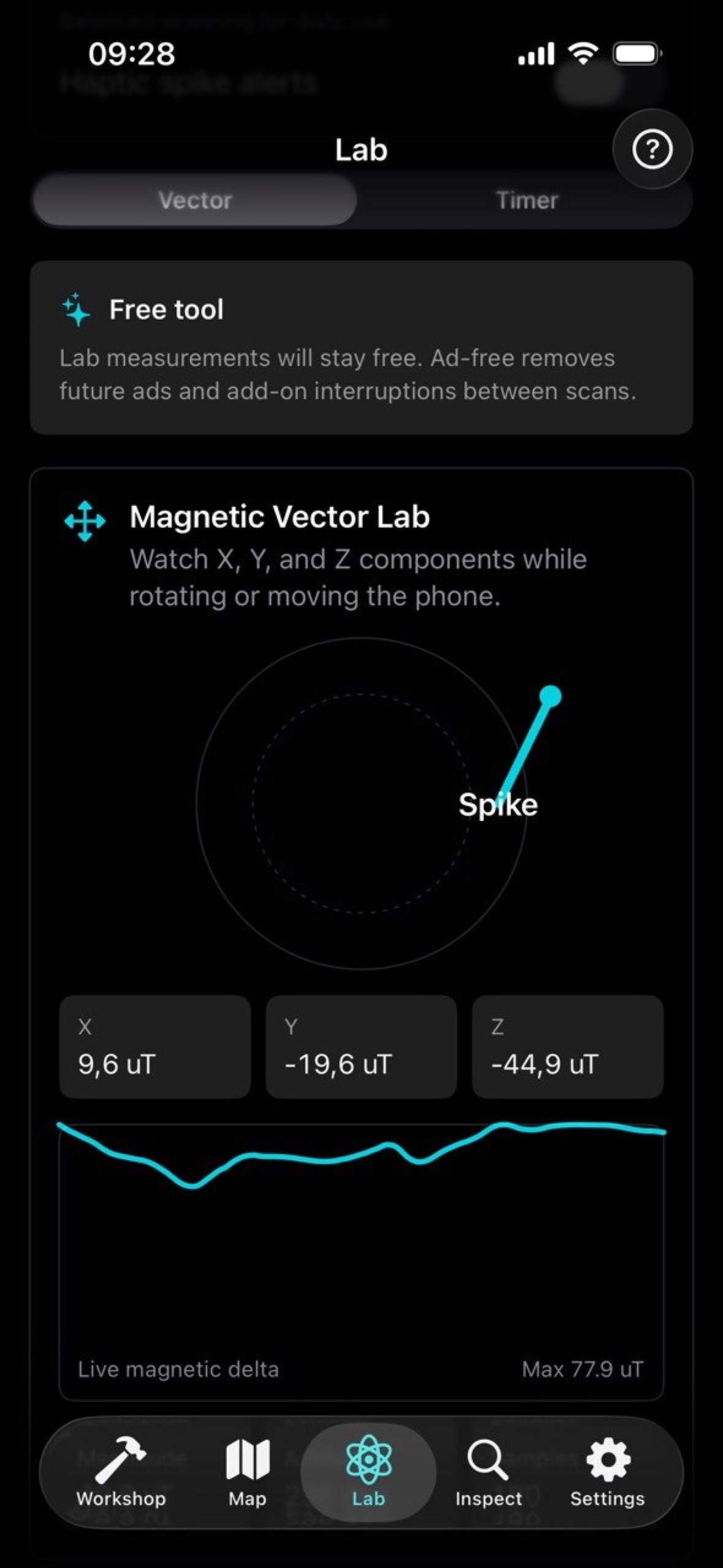
- Vector readout shows magnetic field components and the overall magnitude.
- Pendulum timer supports educational timing experiments near magnetic objects.
- Lab readings are for learning and comparison, not calibrated scientific measurement.
Inspect Tools
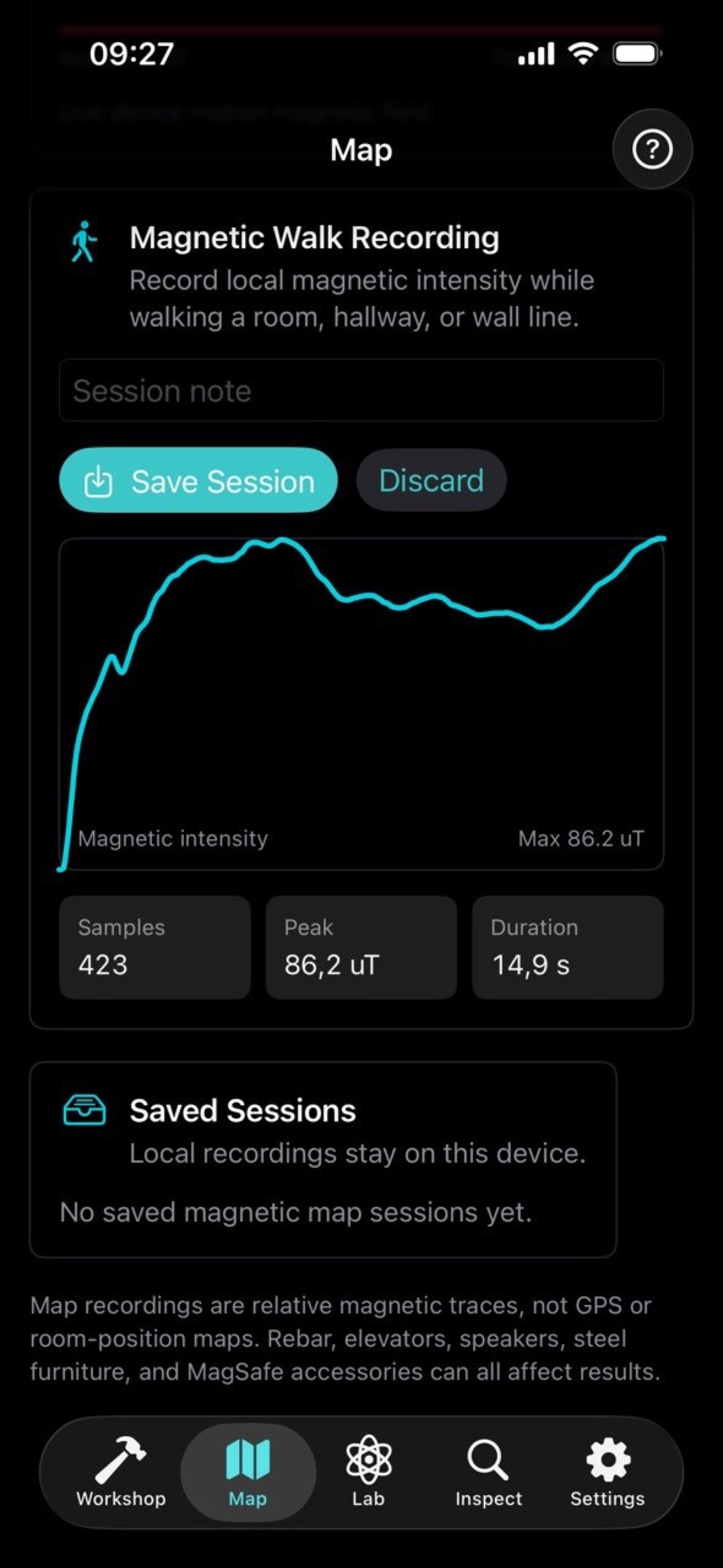
- Run localized sweeps over a small area and compare repeated peaks.
- Review the false-positive guide before interpreting a result.
- Move away from motors, chargers, speakers, large metal objects, and magnets when readings are noisy.
- Never use the app as proof that an area is safe to drill, cut, open, or modify.
Language, Ads, and Purchases
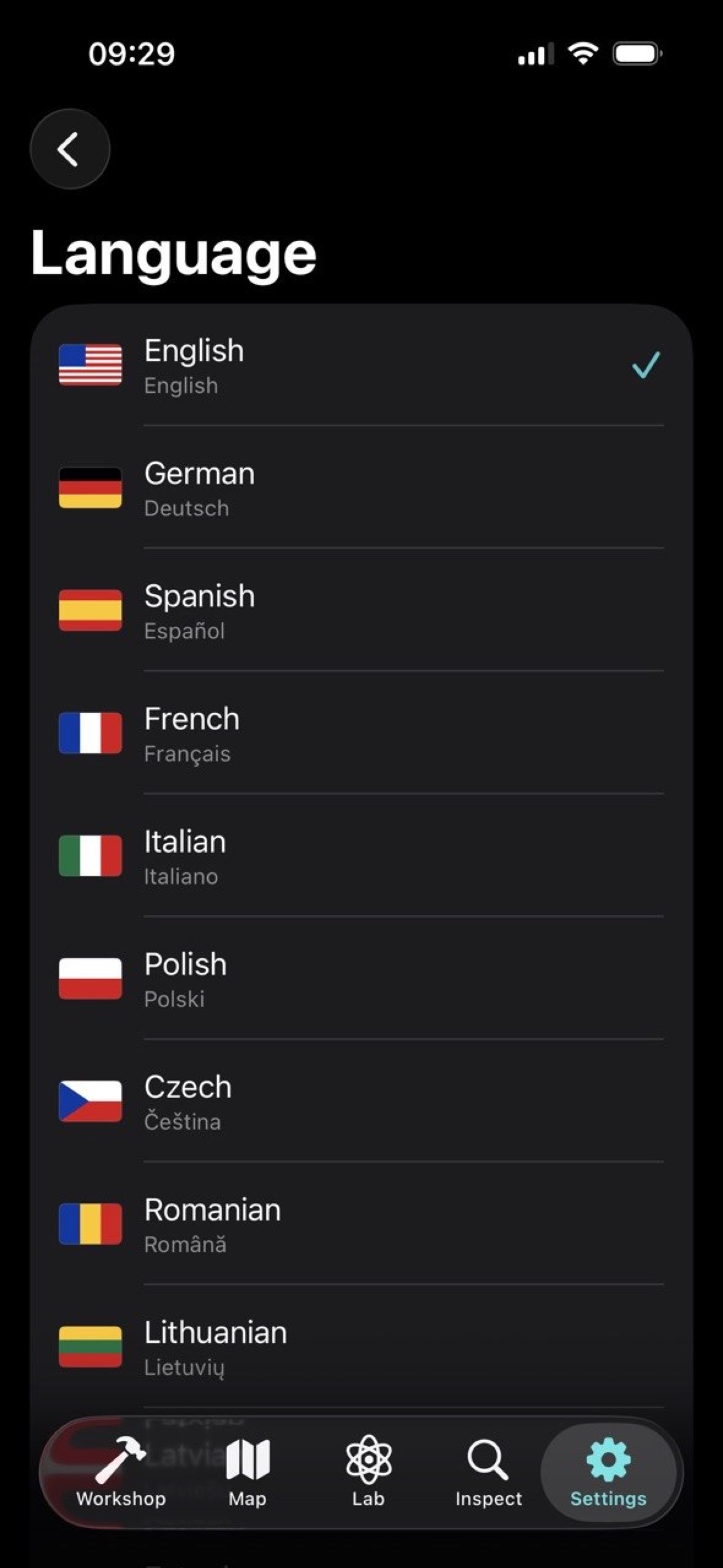
- The app includes an in-app language setting with English, German, Spanish, French, Italian, Polish, Czech, Romanian, Lithuanian, Latvian, Estonian, Swedish, Finnish, Ukrainian, Greek, and Belarusian.
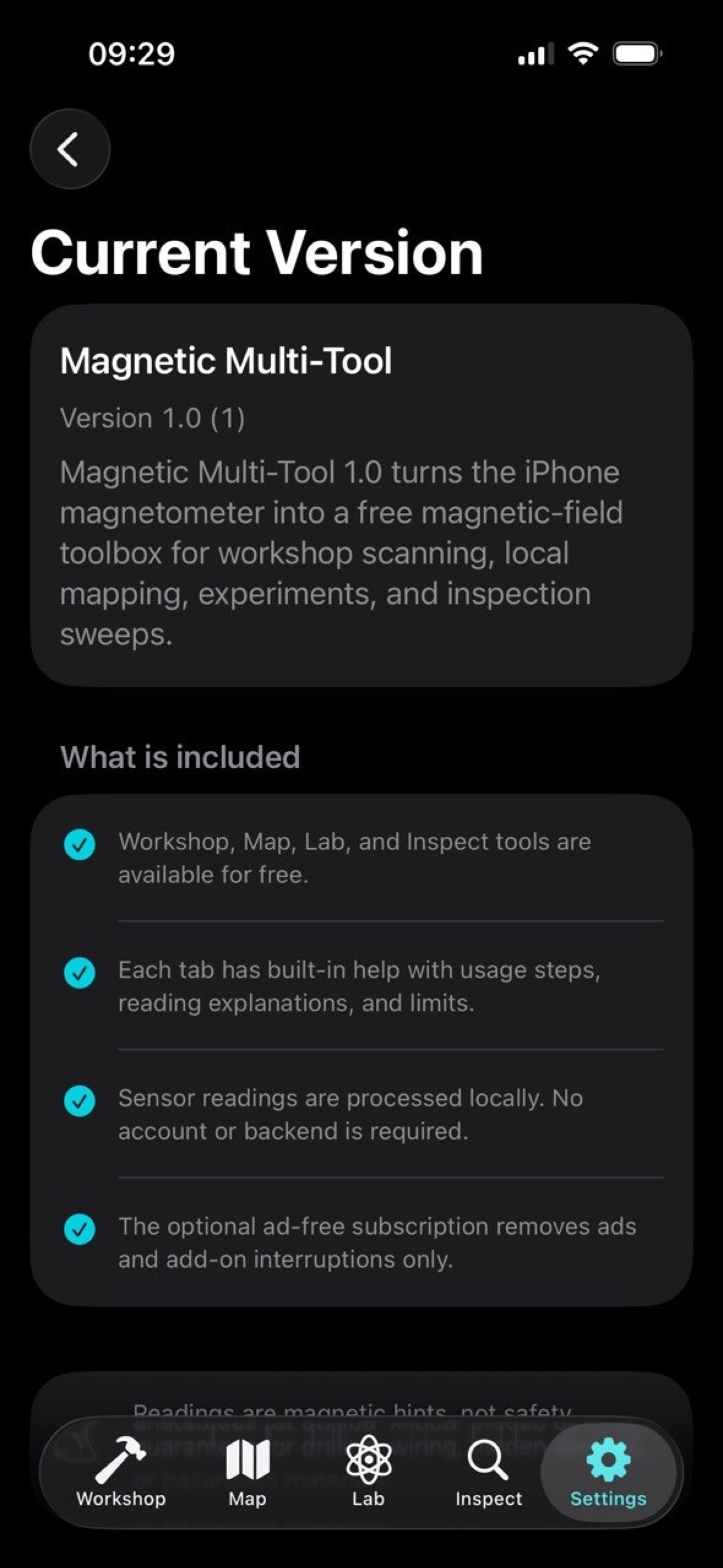
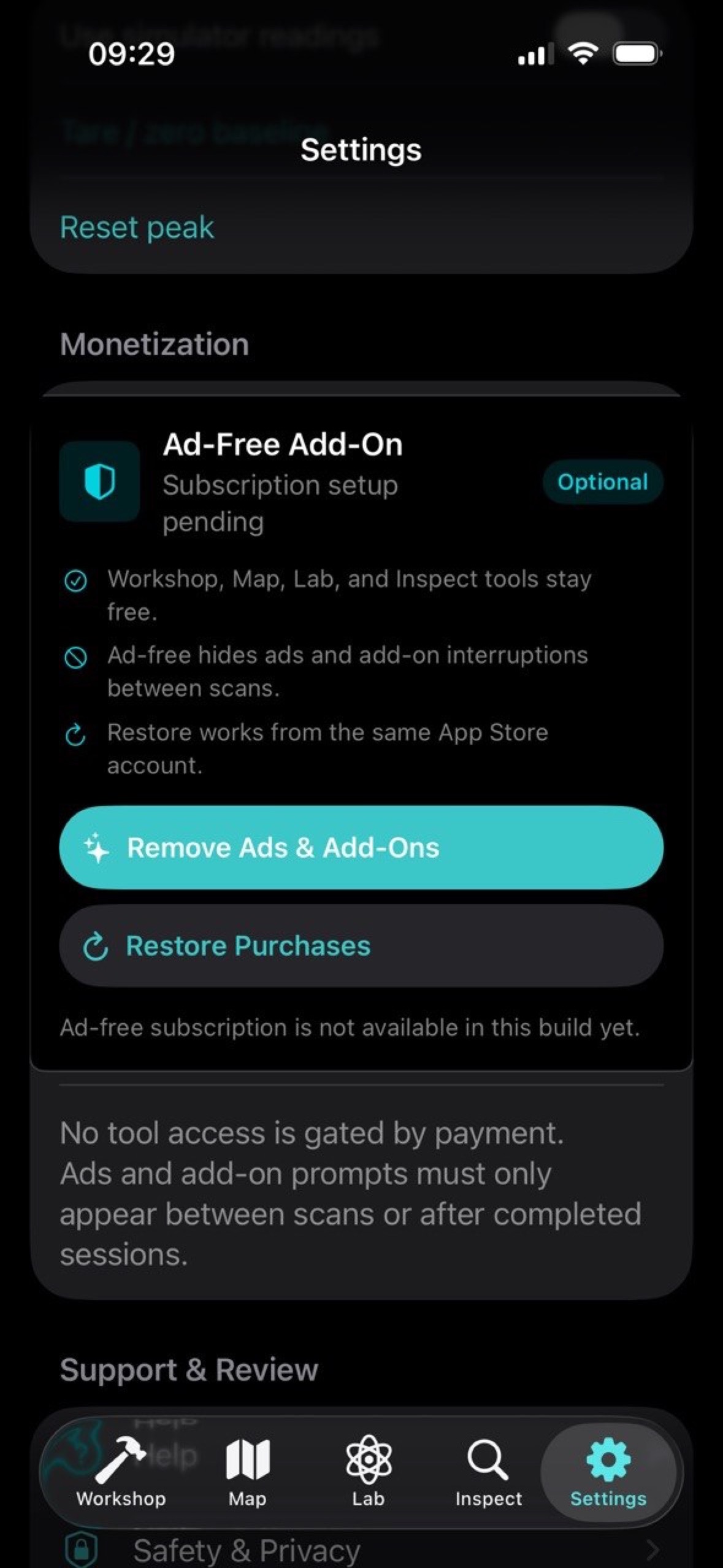
- All tools are free to use.
- Free users may see AdMob banner ads and add-on prompts outside active measurement flows.
- The optional one-time Remove Ads purchase removes ads and add-on interruptions forever.
- Use Restore Purchases in Settings if you reinstall the app or switch devices with the same App Store account.
Privacy and Data
- No account is required.
- Magnetometer readings are processed on device.
- Saved map sessions are stored locally on the device.
- Google Mobile Ads may process advertising-related data when ads are enabled.
- Apple StoreKit handles the optional one-time Remove Ads purchase and restore flow.
Read the full Magnetic Multi-Tool Privacy Policy.
Support
For support, contact:
Oleg Bourdo
tech_support@vozhyk.com