Deployed iOS application
Dust Cleaner Help and Support
Usage guide for Dust Cleaner on iPhone. Last updated: October 20, 2026.
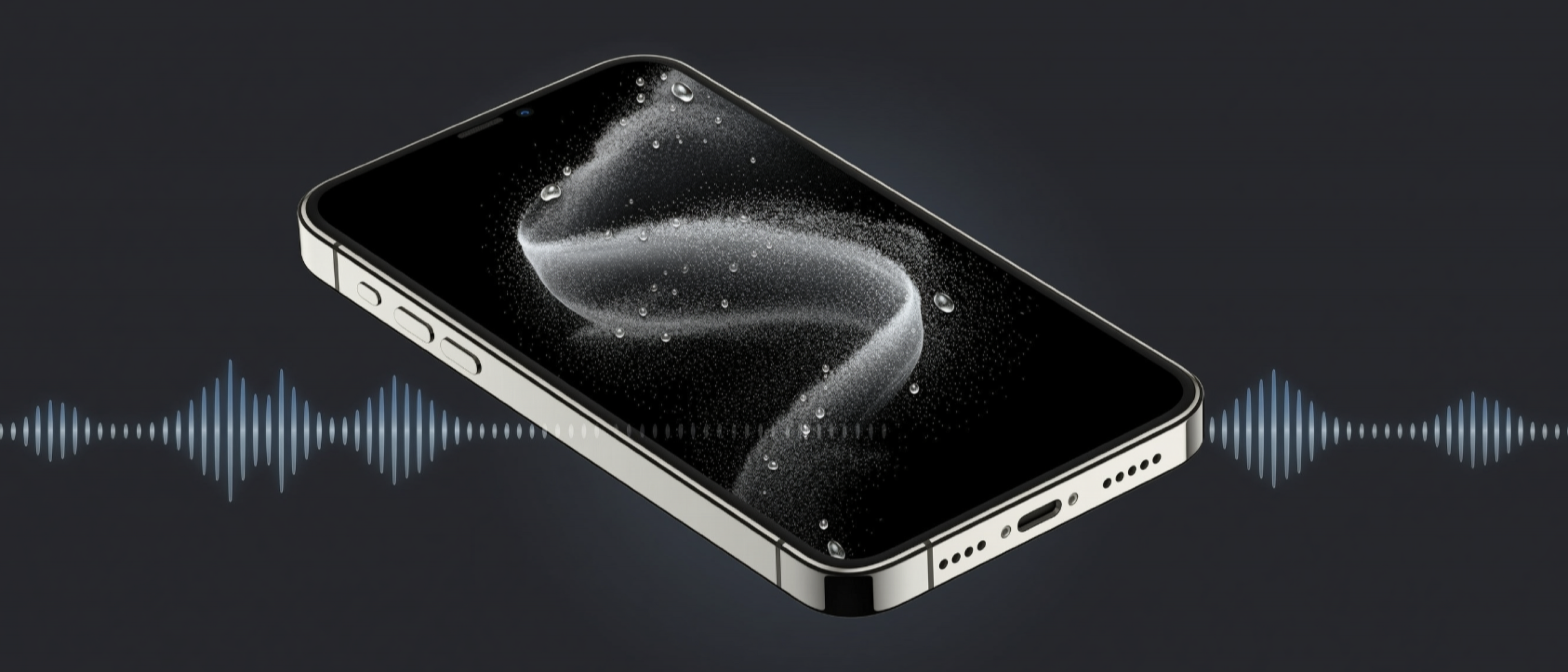
Dust Cleaner plays low-frequency sound through the iPhone speaker and can use device haptics on supported iPhones to help move loose water droplets and debris away from the speaker grille.
Dust Cleaner is a utility, not a repair service. It does not fix damaged hardware, guarantee water removal, clean microphones completely, or remove compacted lint, oil, sticky debris, or material lodged inside the device.
Sound and vibration cleaner
Choose a mode, point the speaker downward, and stop if the sound feels uncomfortable.
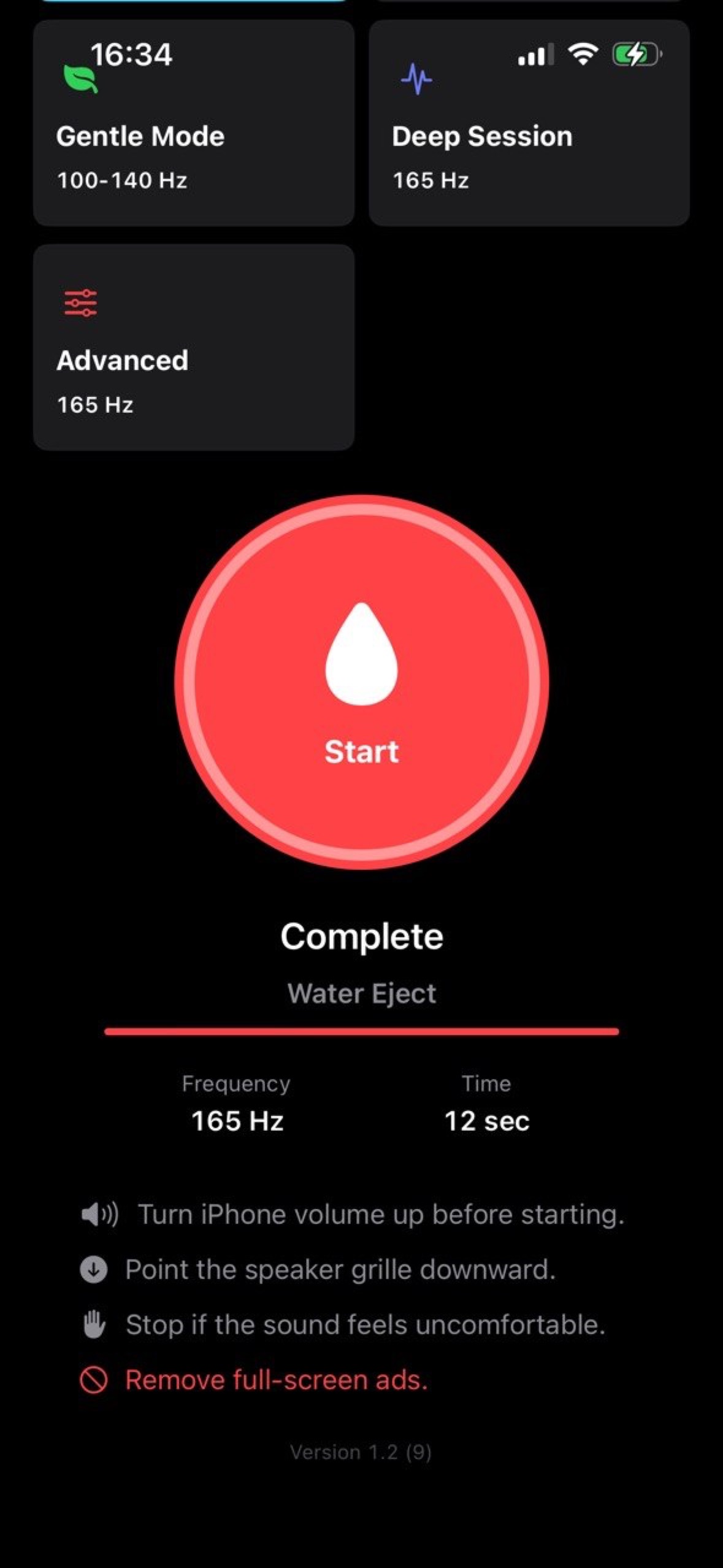
Use Water Eject for a short fixed tone, Speaker Dust for a sweep, Gentle Mode for a softer session, Deep Session for pulsed output, or Advanced to choose the frequency and duration yourself.
Quick Start
- Remove the iPhone from any case that covers or blocks the speaker area.
- Turn iPhone media volume up before starting.
- Hold the iPhone so the speaker grille points downward.
- Select the mode that matches the situation.
- Tap Start and let the session finish, or tap Stop early if needed.
- After the session, gently wipe the outside of the speaker area with a soft dry cloth.
Modes
- Water Eject: fixed 165 Hz session intended for loose water droplets near the speaker grille.
- Speaker Dust: sweep from low to higher speaker frequencies for loose dust or light debris.
- Gentle Mode: softer output for a shorter, less intense session.
- Deep Session: pulsed 165 Hz output with brief rests for a longer run.
- Advanced: manually choose frequency and duration when you want more control.
Safe Use
- Stop immediately if the sound, vibration, or device temperature feels uncomfortable.
- Do not press needles, pins, metal tools, or sharp objects into the speaker or microphone grilles.
- Do not pour liquid into the speaker area.
- Avoid strong compressed air because it can push material deeper or damage seals.
- Let the iPhone dry naturally if it was exposed to water. Follow Apple's device care guidance for your model.
- Contact Apple or a qualified repair provider if sound remains muffled, distorted, intermittent, or absent.
What to Expect
The app can help move loose material by using speaker airflow from sound and device vibration. Results depend on the iPhone model, speaker condition, volume level, debris type, and how the phone is held. Microphone openings do not have the same direct speaker airflow, so any benefit around microphone grilles is mainly from whole-device vibration.
Ads and Purchases
- The app can show full-screen ads after cleaning sessions for users without ad-free access.
- Ads are not shown during active audio or haptic cleaning sessions.
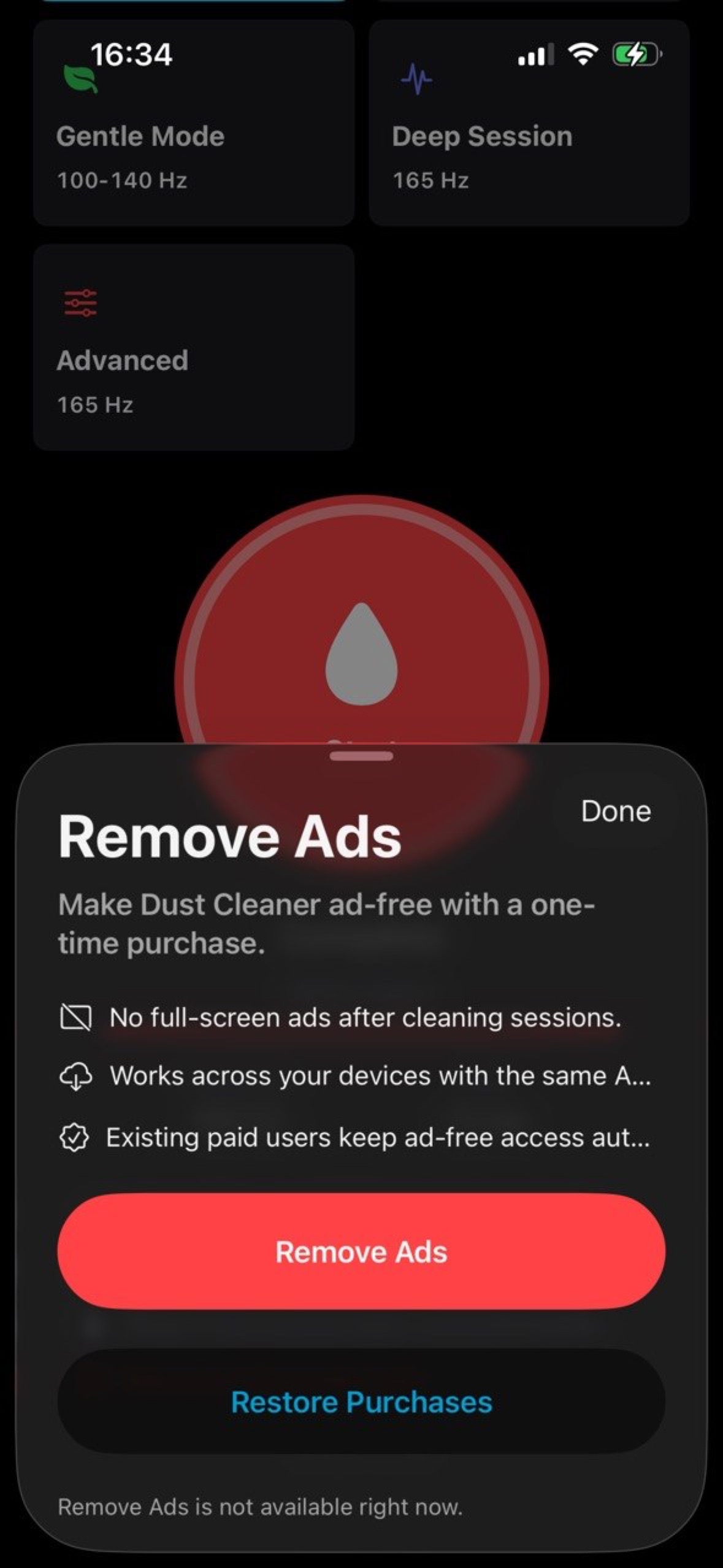
- The optional one-time Remove Ads purchase removes full-screen ads.
- Existing paid users from earlier paid builds keep ad-free access automatically when App Store receipt information confirms eligibility.
- Use Restore Purchases if you reinstall the app or switch devices with the same App Store account.
Troubleshooting
- If you hear no tone, check the iPhone volume, silent mode behavior, connected Bluetooth audio devices, and Focus or audio routing settings.
- If haptics do not run, your iPhone model may not support the required haptic engine, or system haptics may be unavailable.
- If the session stops unexpectedly, reopen the app and try a shorter mode.
- If purchase buttons are unavailable, check network access, App Store sign-in, Screen Time purchase restrictions, and try again later.
Privacy and Data
- No account is required.
- The app does not request microphone, camera, contacts, photos, Bluetooth, or location permissions.
- Audio generation and haptics run on device.
- Google Mobile Ads may process advertising-related data when ads are enabled.
- Apple StoreKit handles the optional Remove Ads purchase and restore flow.
Read the full Dust Cleaner Privacy Policy.
Support
For support, contact:
Oleg Bourdo
tech_support@vozhyk.com