iOS application support
Drone Detector Help and Support
Usage guide for DroneGuard: Drone Detector on iPhone. Last updated: November 5, 2026.
Developping Not deployed
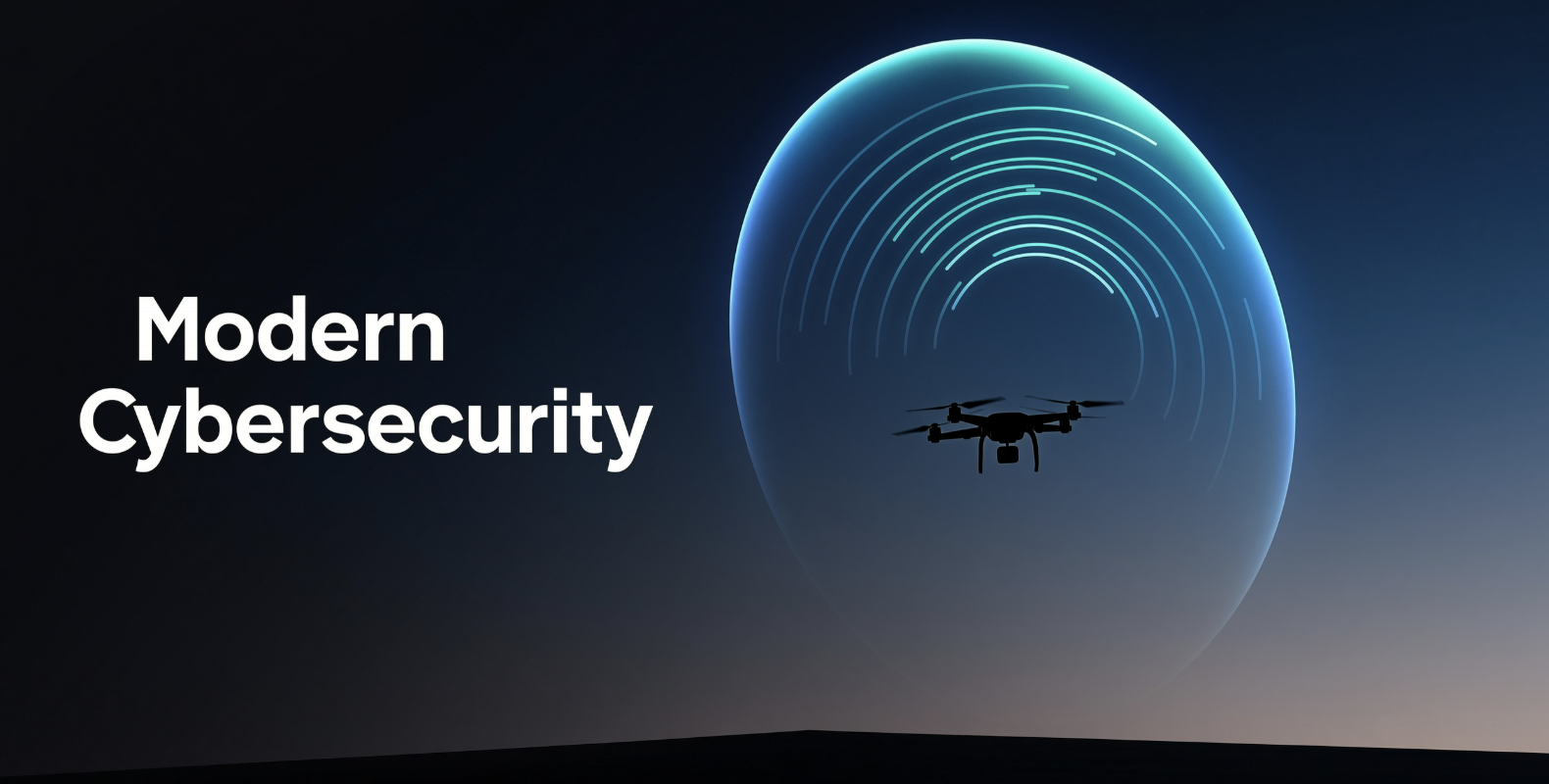
Drone Detector scans nearby Bluetooth Low Energy advertisements and iOS-permitted network context for possible drone-like radio signatures. Results are best-effort hints and require user interpretation and visual confirmation.
Drone Detector is an informational radio-awareness utility, not a certified anti-drone system, aviation-safety tool, emergency service, law-enforcement tool, military tool, or guaranteed drone detector.
BLE radio awareness utility
Start a short scan, review possible signatures, and use confidence reasons to decide what needs visual confirmation.
The app uses public iPhone APIs. Bluetooth scanning is the primary signal source. iOS does not allow apps to passively scan all Wi-Fi networks, read Wi-Fi packets, monitor every Remote ID Wi-Fi beacon, or perform RF spectrum analysis.
Quick Start
- Use Drone Detector on a physical iPhone. The iOS Simulator cannot provide meaningful Bluetooth scan behavior.
- Open the Scan tab and allow Bluetooth permission when prompted.
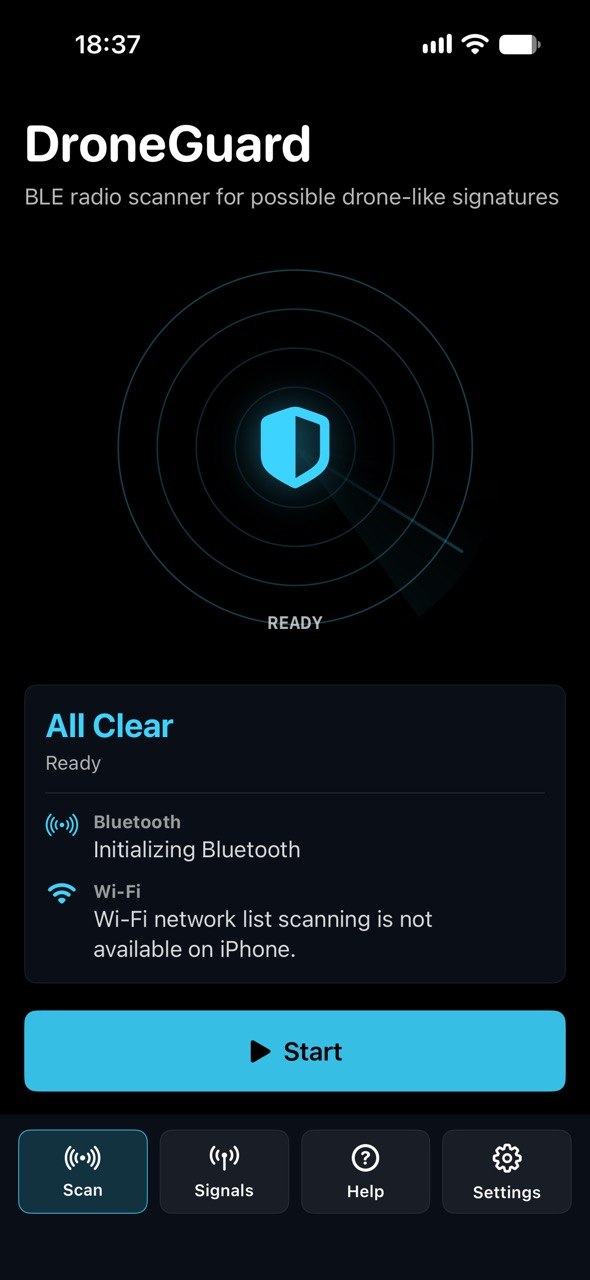
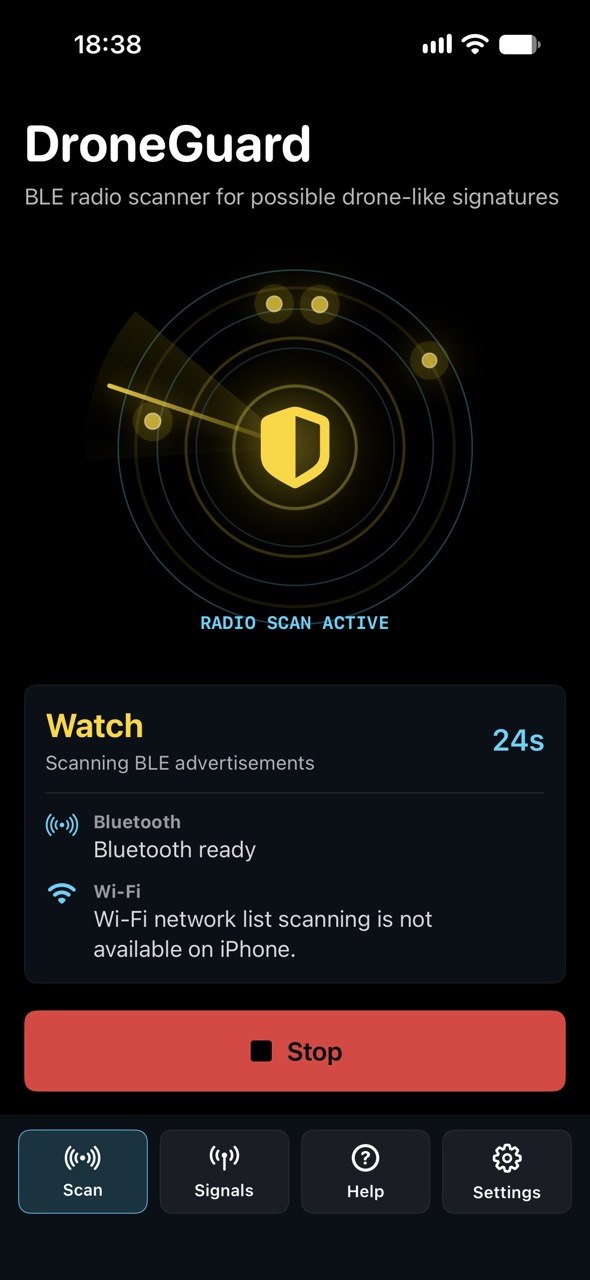
- Tap Start and let the scan run for the countdown period, or tap Stop when you have enough results.
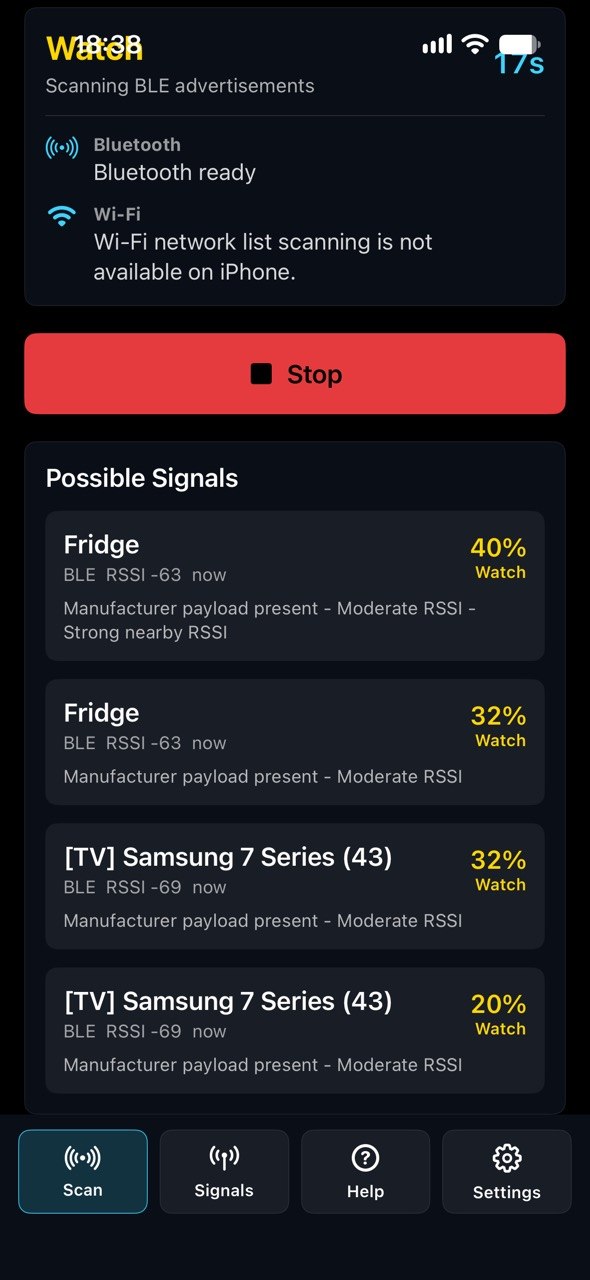
- Review the radar state and Possible Signals list. A blank list means no suspicious BLE signatures were found in the current session.
- Open Signals to review recent observations, confidence values, RSSI, last-seen time, and reason labels.
- Treat any possible drone-like signal as a prompt to visually confirm the environment, not as proof that a drone is present.
How Detection Works
Drone Detector listens for nearby BLE advertisements during an active user-started scan. It scores visible radio observations using local heuristics such as drone-related names, Remote ID related patterns where visible to iOS, repeated advertisements, strong RSSI, and signal recency. The app labels results as Clear, Watch, Possible Drone, or Strong Signal based on confidence.
Interpreting Results
- All Clear means the current scan did not find suspicious BLE signatures. It does not prove that no drone exists nearby.
- Watch means a signal has weak or partial drone-like hints and should be treated cautiously.
- Possible Drone means the local heuristic score is higher, but the signal still requires visual confirmation.
- Strong Signal means the app saw stronger or repeated local hints. It is still not a certified identification.
- Unknown Bluetooth devices, headphones, trackers, cameras, toys, controllers, or nearby electronics can produce BLE signals and may be misclassified.
iPhone Wi-Fi and Radio Limits
iOS does not expose a public API for unrestricted passive Wi-Fi scanning, packet capture, Remote ID Wi-Fi beacon monitoring, or spectrum analysis. Drone Detector therefore focuses on BLE advertisements and clearly reports when broader Wi-Fi network list scanning is unavailable on iPhone.
Troubleshooting
- If scanning cannot start, check Bluetooth permission in iOS Settings and make sure Bluetooth is powered on.
- If no signals appear, move to a different area and run a fresh scan. The current environment may not have visible BLE advertisements that match the app heuristics.
- If many unrelated signals appear, sort by confidence and read the reason labels before drawing conclusions.
- If ads do not appear for free users, check network connectivity; scanning itself does not depend on ads.
- If Remove Ads is active on another device, use Restore Purchases while signed in with the same App Store account.
Privacy and Data
- No account is required.
- BLE observations, scan status, confidence scores, and signal reason labels are processed locally on the iPhone.
- The app does not upload scan results to a custom Vozhyk server.
- The free version may show Google Mobile Ads banner ads and may request App Tracking Transparency permission before ad startup.
- Remove Ads is handled through Apple StoreKit as a one-time non-consumable purchase.
Read the full Drone Detector Privacy Policy.
Support
For support, contact:
Oleg Bourdo
tech_support@vozhyk.com