Deployed iOS application
TargetLock Help and Support
Usage guide for TargetLock on iPhone and iPad. Last updated: October 21, 2026.
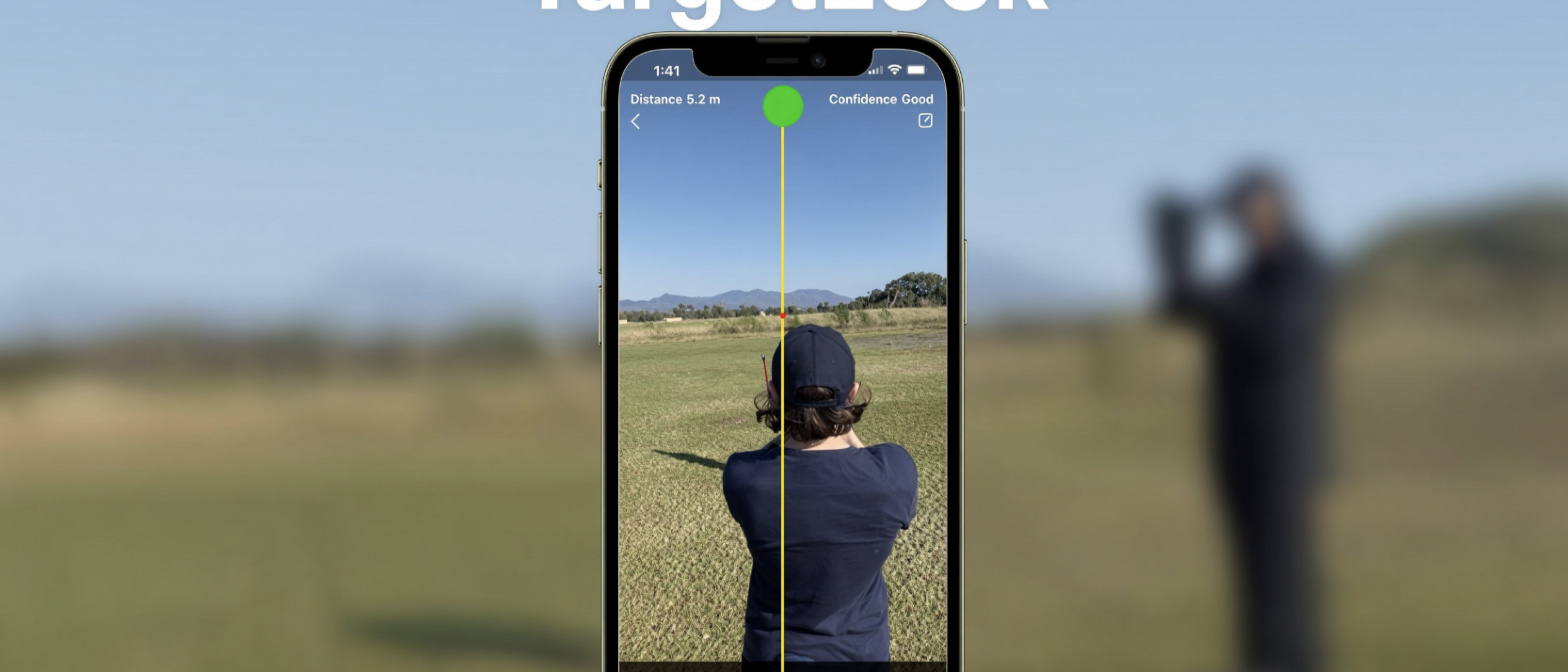
TargetLock estimates distance to a visible person, animal, or object when you know the target's real-world height. It uses ARKit camera tracking and a two-tap stadiametric measurement flow.
TargetLock is an estimation utility, not a certified surveying, construction-safety, emergency, medical, weapon, or professional measurement instrument.
AR distance estimation
Tap the target top and bottom, enter known height, and review an estimated distance.
The app calculates distance locally from ARKit camera intrinsics, the target's real height, and the target's height on screen. It includes confidence guidance, validation warnings, current-session history, and user-initiated sharing.
Quick Start
- Use a physical ARKit-compatible iPhone or iPad running iOS or iPadOS 15.6 or later.
- Allow camera access when prompted.
- Point the camera at a target whose real-world height you know.
- Tap the top of the target, then tap the bottom of the target.
- Choose a height preset or enter a custom height in meters, centimeters, or feet and inches.
- Review the estimated distance, confidence label, and any improvement tip.
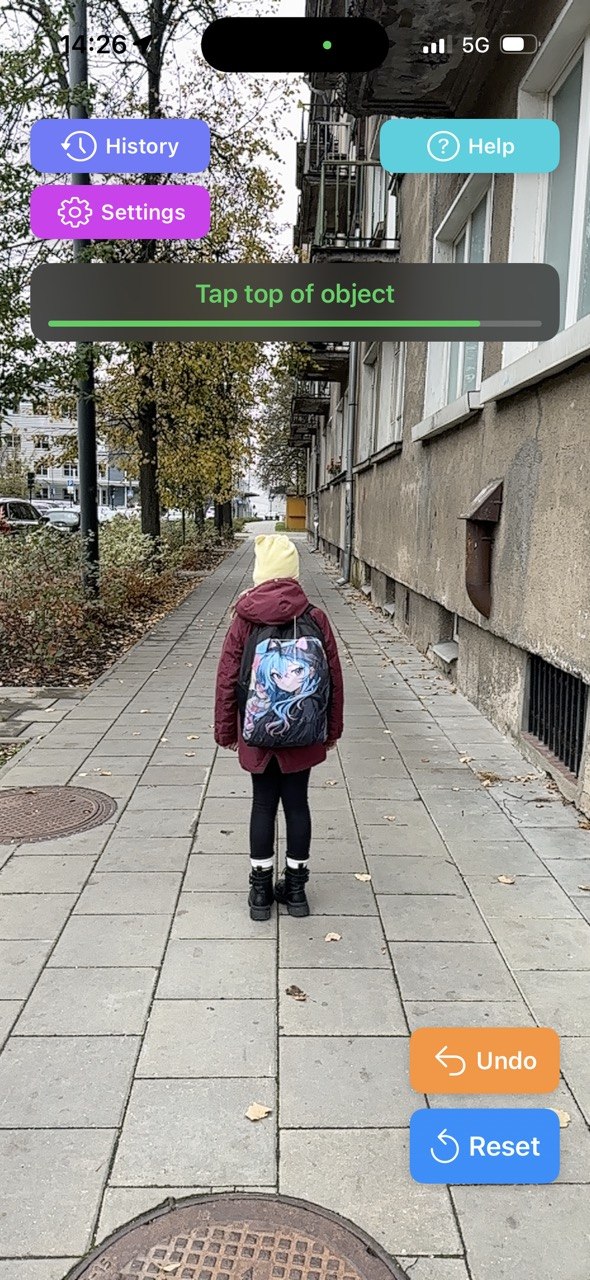
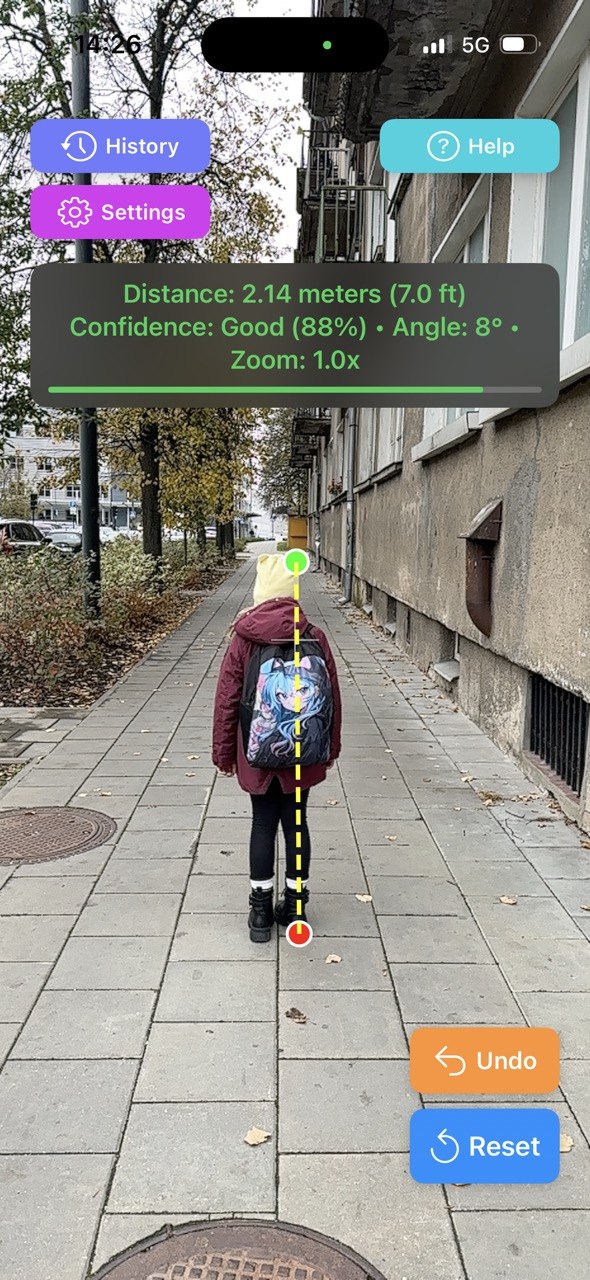
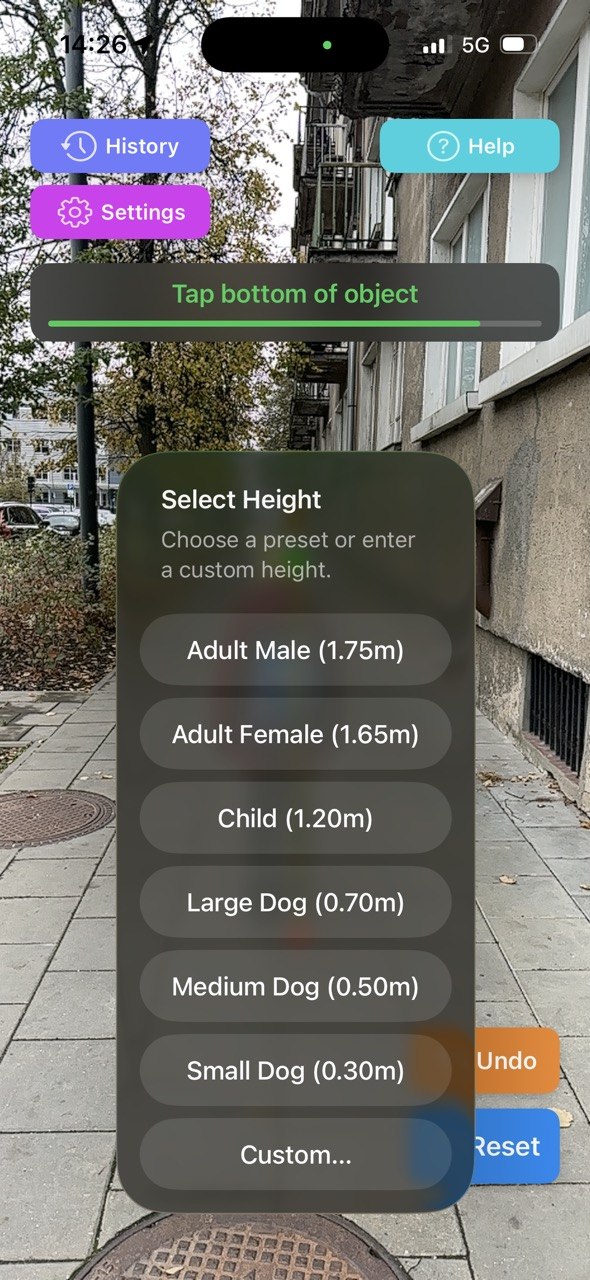
Measurement Tips
- Use a clear target that is fully visible from top to bottom.
- Enter the target height as accurately as possible.
- Hold the device steady and avoid measuring in poor lighting.
- Measure from a moderate distance when practical; very close and very long distances are less reliable.
- Keep the target upright and close to perpendicular to your line of sight.
- Repeat the measurement and compare results when accuracy matters.
Controls and Settings
- Undo removes the last tap if you selected the wrong point.
- Reset clears the current markers, line, warnings, and recent validation state.
- Pinch zoom is supported from 1.0x to 4.0x, and the calculation accounts for the current zoom factor.
- Settings control distance units, theme, grid overlay, crosshair overlay, and haptic feedback.
- Help can reopen the quick tutorial after the first-launch guide has been completed.
History and Sharing
TargetLock keeps measurement history only for the current app session. You can view session stats, inspect a measurement detail, delete rows, clear all session measurements, share one measurement, or share the current-session history through the iOS share sheet. The app does not upload measurements to a TargetLock or Vozhyk server.
Troubleshooting
- If AR does not start, confirm that the device supports ARKit and camera access is enabled.
- If markers do not appear, tap directly on the live camera view and try Reset.
- If a result looks wrong, retap the target points and verify the entered height.
- If confidence is low, improve lighting, move closer, hold steadier, or choose a clearer target.
- If the camera view fails after a permission change, close and reopen the app.
Privacy and Data
- No account is required.
- Camera frames are processed locally for live AR measurement and are not uploaded.
- TargetLock does not request location access.
- The app does not include advertising, analytics, crash reporting, or third-party tracking SDKs.
- Settings are stored locally. Measurement history is current-session only unless you choose to share it.
Read the full TargetLock Privacy Policy.
Support
For support, contact:
Oleg Bourdo
tech_support@vozhyk.com