Deployed iOS application
NoiseRadar Help and Support
Usage guide for NoiseRadar on iPhone. Last updated: October 20, 2026.
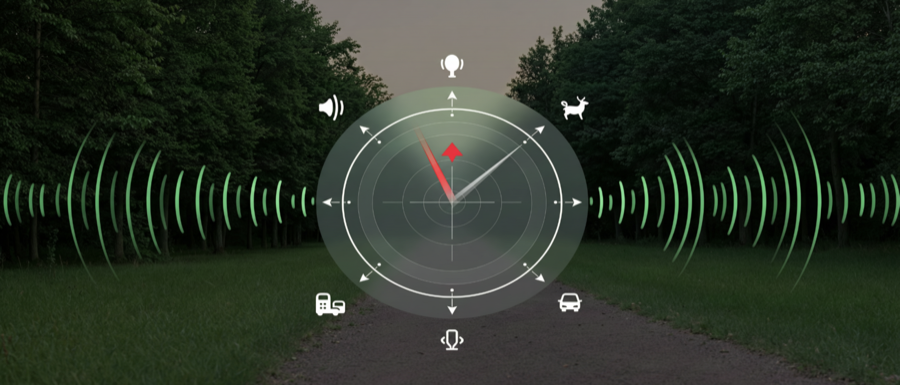
NoiseRadar estimates the direction of the loudest nearby sound source while you slowly rotate your iPhone. It also shows broad local sound type labels during scans and foreground listening.
NoiseRadar is a casual utility, not a certified acoustic instrument, emergency service, security system, surveillance tool, medical tool, or professional measurement device.
Local sound direction utility
Scan 360 degrees, review the loudest heading, and inspect sound categories on device.
The app uses the iPhone microphone, compass heading, and motion sensors to build a local sound map. Sound classification uses Apple's on-device sound analysis and does not require an account.
Quick Start
- Use NoiseRadar on a physical iPhone. The iOS Simulator cannot provide reliable microphone, compass, or motion behavior.
- Allow microphone access when prompted.
- Allow location access if you want compass heading-based direction results. iOS provides compass heading through Location Services.
- Stand in one place and hold the iPhone away from clothing or objects that block the microphone.
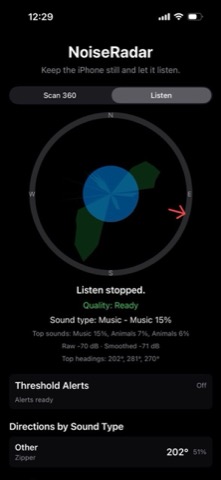
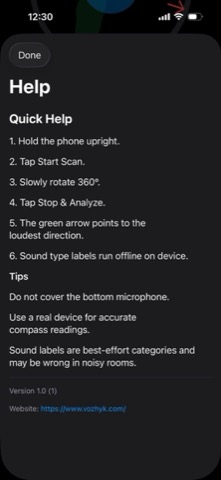
- Tap Start Scan, wait for calibration, then slowly rotate in a full circle.
- Tap Stop & Analyze after completing the rotation to review the loudest heading and category direction results.
Scan 360 Mode
- Start in the direction you want to treat as your reference point.
- Rotate slowly and steadily. Fast movement can reduce scan quality or cause samples to be rejected.
- Keep the phone at a consistent height and avoid covering the microphone.
- For best results, make the target sound louder than the background noise and repeat the scan if the room is echoey.
- Use the top heading list as supporting information, not as a precision measurement.
Listen Mode
Listen mode is for foreground monitoring while the app is open. It can show current sound level, broad sound type labels, and recent local sound events. It does not run as a background surveillance service.
Sound Type Labels
Sound labels are best-effort estimates from Apple's built-in on-device classifier. Labels can be wrong when sounds overlap, the source is quiet, the environment is noisy, or echoes are strong. Treat labels as general context, not as proof of what produced a sound.
Threshold Alerts and Calibration
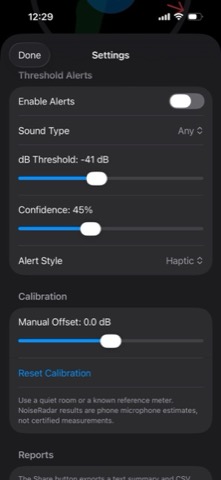
- Foreground threshold alerts can notify you when the measured level passes your selected threshold.
- Alerts are best-effort and only work while the app is active in the foreground.
- Manual dB calibration offset can make the displayed value better match your local reference, but it does not turn the app into a certified meter.
- Alert sounds may be picked up by the microphone in quiet environments.
Reports and History
NoiseRadar can generate local text and CSV session reports and open the iOS share sheet. You choose where those files are sent. Recent event history is kept locally for the current app session and is not uploaded to us.
Troubleshooting
- If scanning cannot start, check microphone permission in iOS Settings.
- If direction results are missing or unstable, check Location permission, move away from magnetic interference, and rotate more slowly.
- If sound levels seem wrong, check that the microphone is not blocked and adjust calibration only against a trusted reference.
- If sound type labels do not appear, keep listening for several seconds and use a clearer, louder source.
- If the app behaves unexpectedly, force close it, reopen it, and try a new scan in a quieter area.
Privacy and Data
- No account is required.
- Audio is processed on device and is not recorded, saved, uploaded, sold, or shared by NoiseRadar.
- Compass heading, device motion, scan results, alert settings, calibration settings, reports, and event history are not sent to a server controlled by us.
- The app does not include advertising, analytics, crash reporting, or third-party tracking SDKs.
Read the full NoiseRadar Privacy Policy.
Support
For support, contact:
Oleg Bourdo
tech_support@vozhyk.com